
So, you need to know how many vegetarian meals to order or how many tickets to get for the off-site reception. Registration Questions make that easy by letting you add custom questions to any registration. Choose from multiple question types and control which people see each question. Meaning, you can ensure attendees only see what’s relevant to them and sponsors see what's relevant to them. These questions are naturally embedded in the registration flow and capture clean, structured data, tied to the registration itself, that helps administrators plan ahead.
Whether you're collecting exhibitor needs, attendee preferences, or sponsor details, the responses give teams the visibility they need to prepare logistics, reduce follow-ups, and deliver a smoother event experience.
Part 1: Setting Up Registration Questions
Step-by-step: Configure Questions
1. Open the Event
-
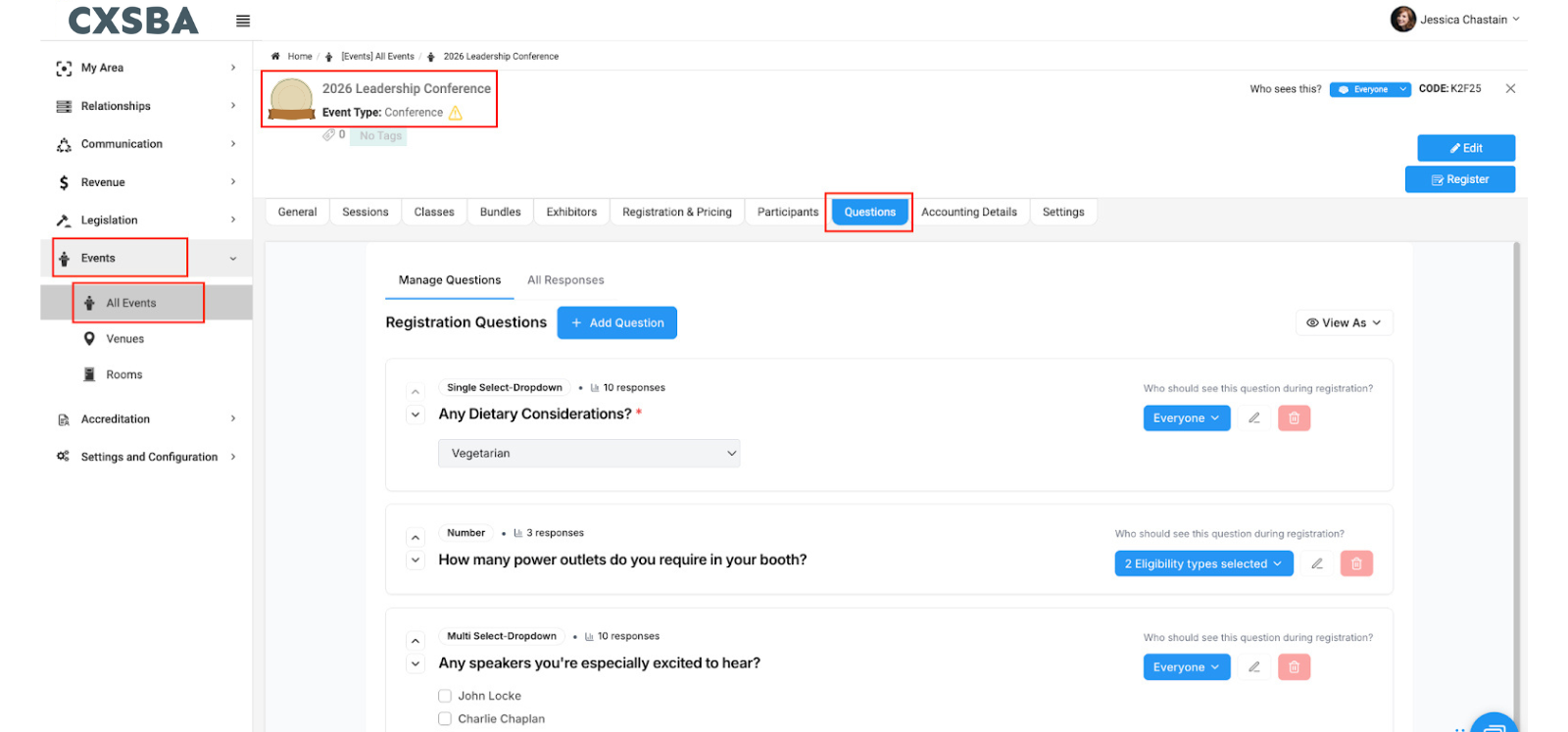
- Open an Event → Questions tab
Tip: You must have the Manage Questions permission enabled in your Role to set up registration questions.
-
- Inside the Questions tab, select Manage Questions to work with your current list and add new ones.
-
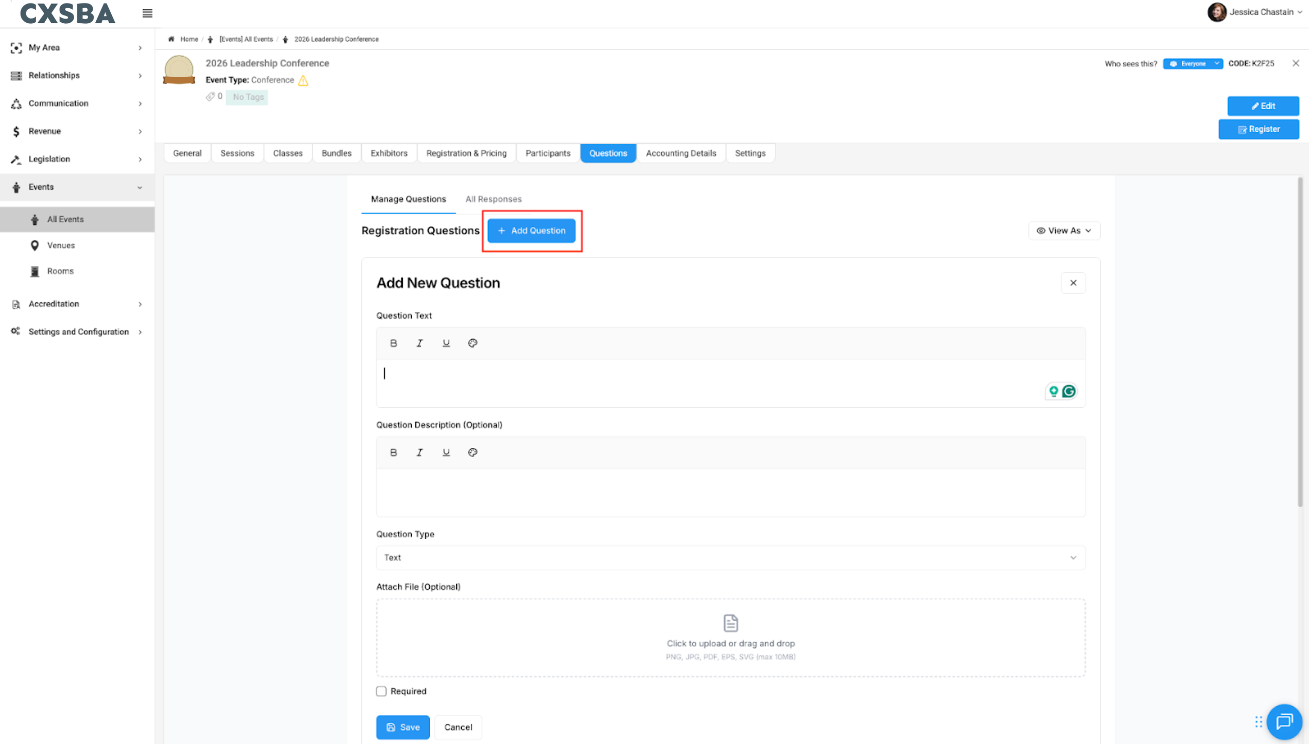
- Click Add Question.
-
- Enter your question text and optional description to give additional clarity.
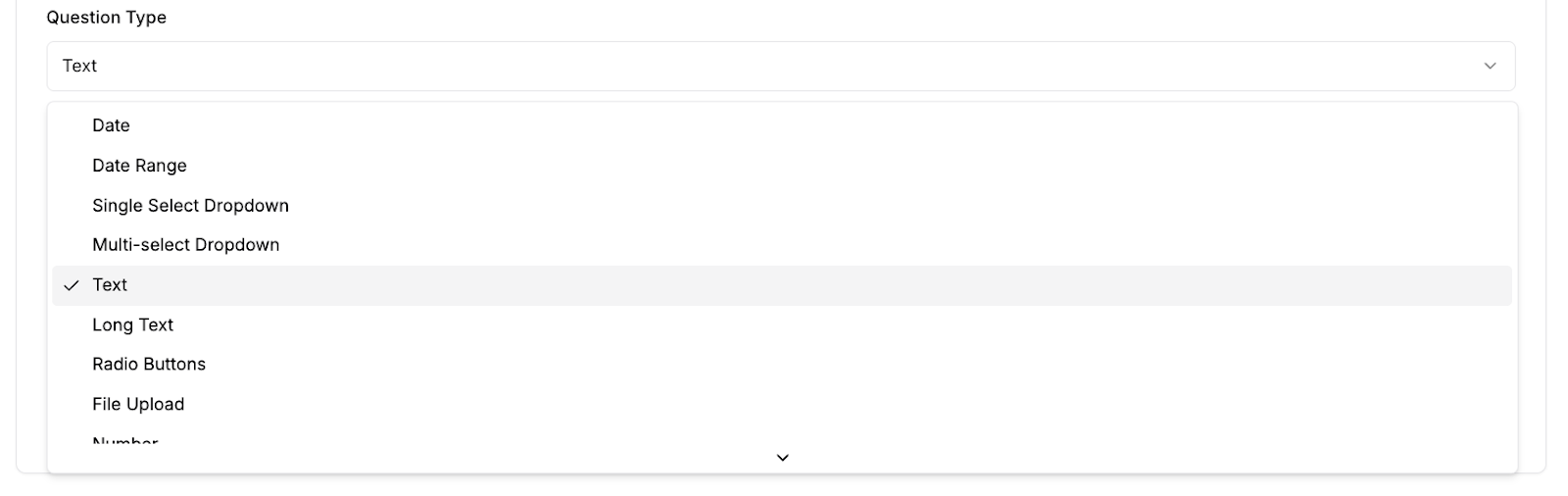
4. Choose a Question Type - Supported types include:
-
- Text / Long Text
- Radio Button (Single Select)
- Multi-select / Checkbox
- File Upload
- Date / Date Range
- Number
- Email / Phone
- Quantity Select (with options and quantities)
- Rating / Ranking
-
- For multi-select, radio, or quantity-select questions, add the answer choices.
- You can reorder options or reorder the questions themselves.
-
- Upload supporting documents, such as forms or instructions, if needed.
-
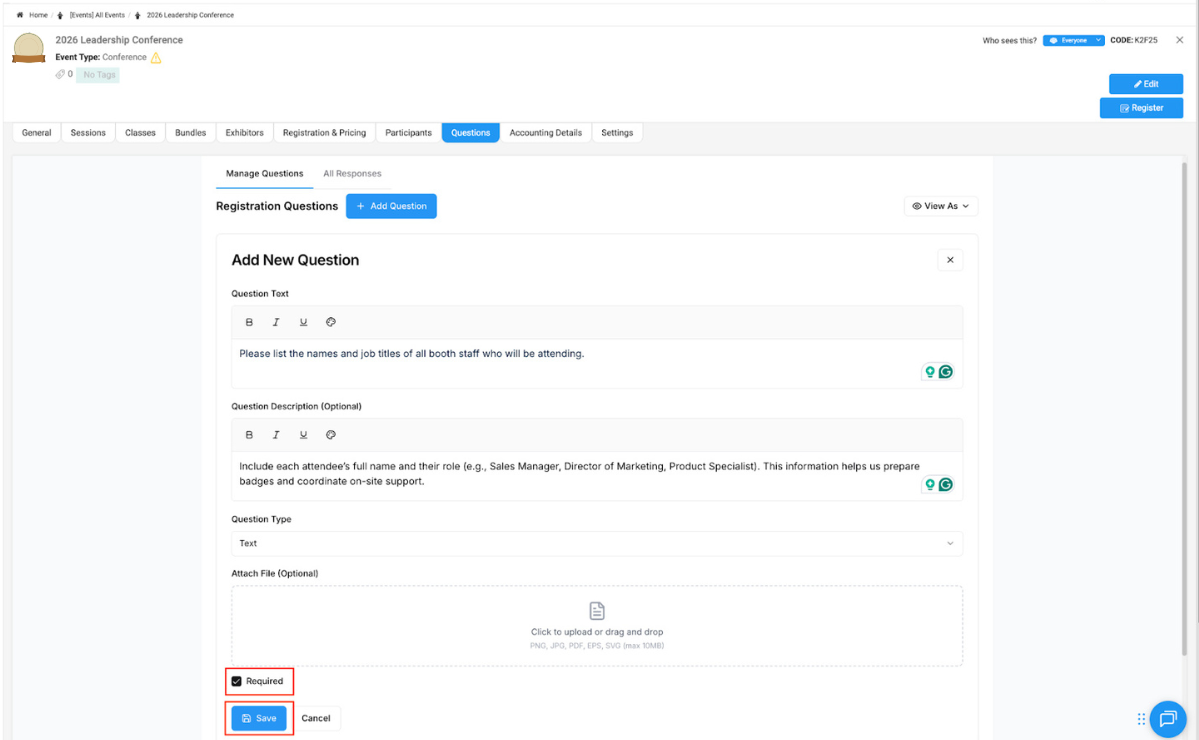
- Required questions must be answered by the registrant to continue the registration.
8. Save the Question Set
-
- After entering the details, press Save to confirm and record your new question.
9. Set Visibility for the Question
Note: Designate which types of registrants will see this question.
Once the question is created, you can choose who should see it during registration.
-
- Click the Who can view dropdown (default is set to Everyone).
- For example, select Specific Person Types and choose Exhibitor (since this question applies only to exhibitors).
- Select Specific Organization Types and choose Exhibitor as well.
- Click Save to confirm your visibility settings.
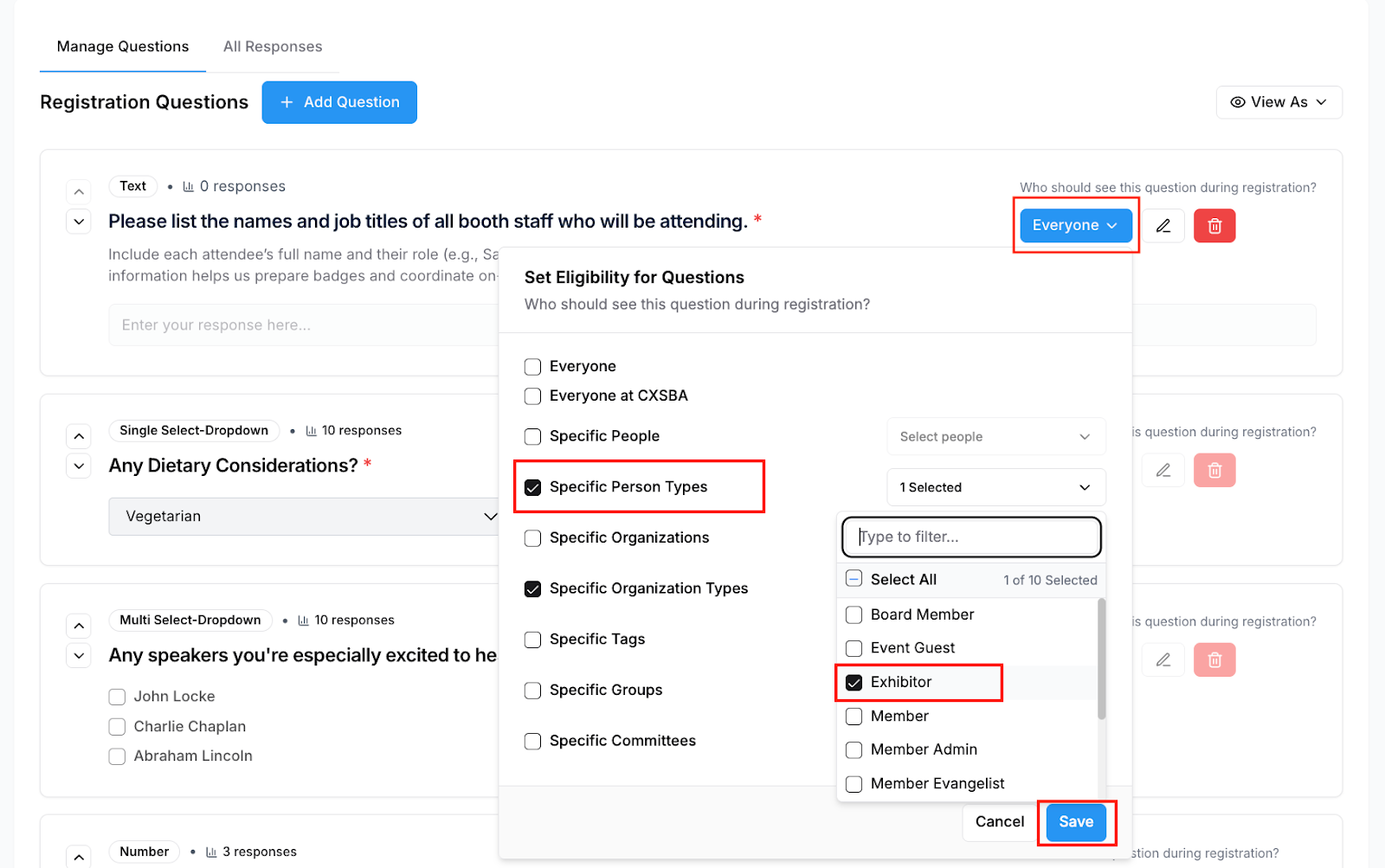
The question will now only appear to the selected person and organization types during registration.
Part 2: Accessing & Managing Responses
After registration, permissioned users can review, filter, and export all collected responses directly inside the event.
Tip: You must have the "View Question Responses" permission enabled in your Role to view responses
Access Responses via the Event
1. Navigate to Event → Questions → All Responses
-
- View total response counts per question.
- Review summaries for multi-select or radio questions (e.g., selection counts).
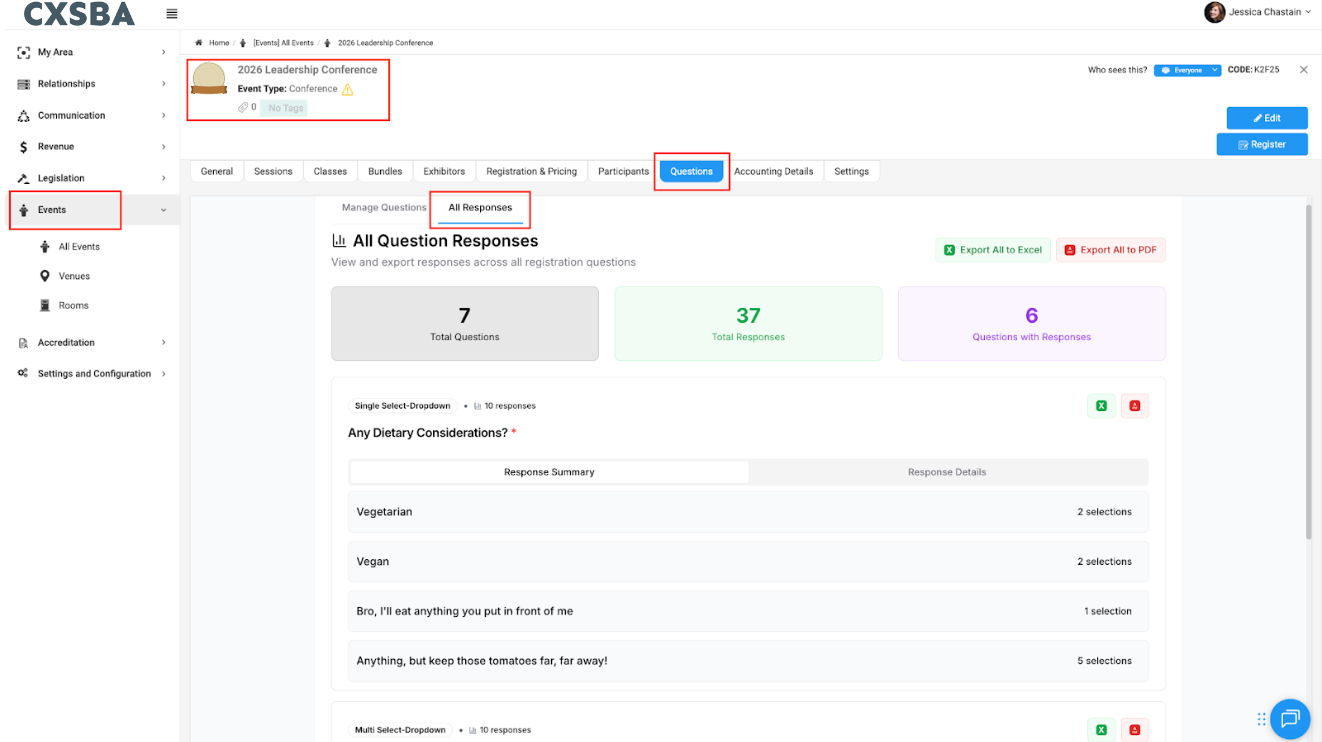
See each registrant’s responses, including:
-
- Name
- Organization
- Answer submitted
- Date/time of submission
- “Recorded by” information
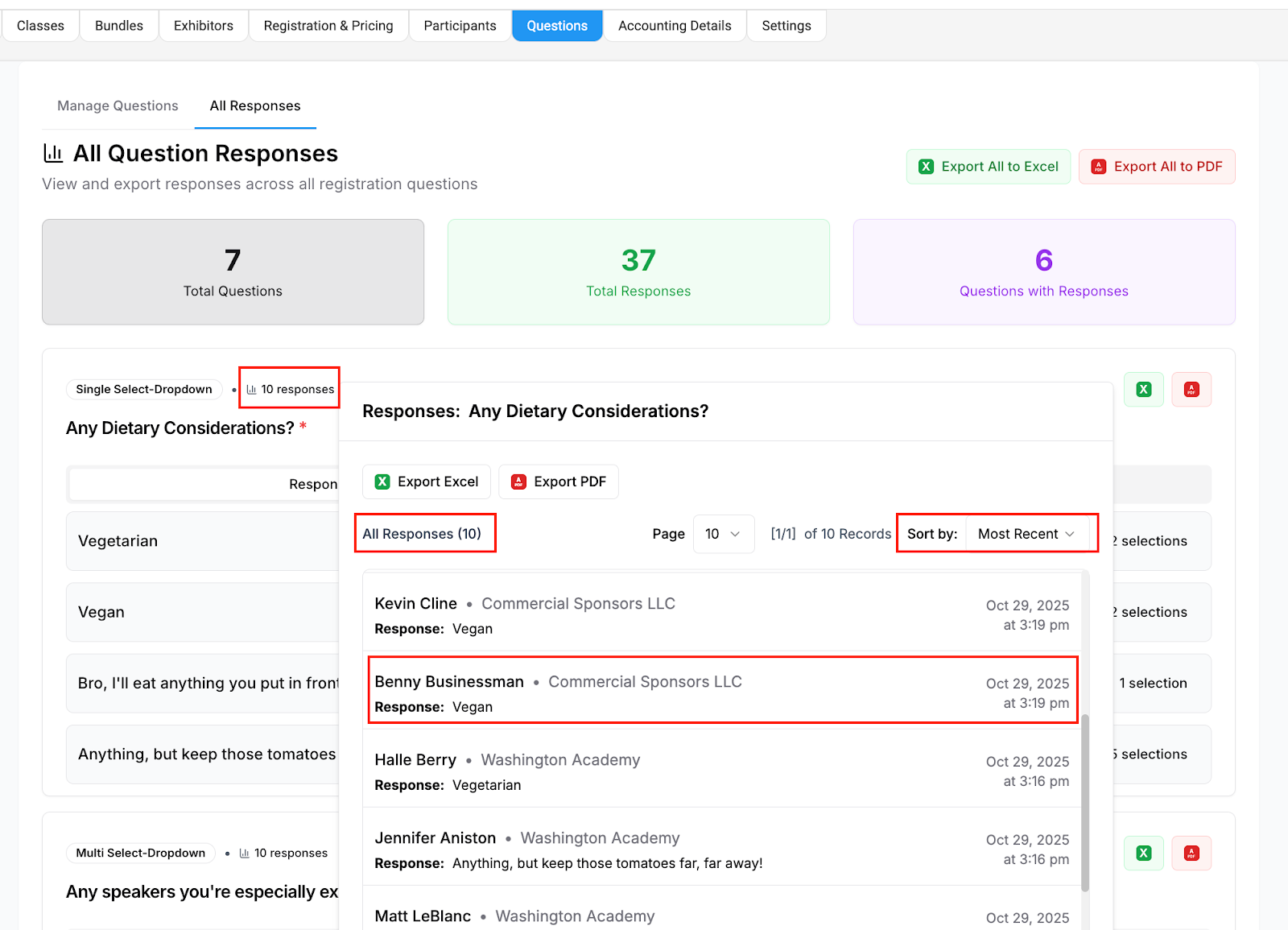
3. Sort & Filter Responses
-
- Sort by organization, date, or respondent name.
- Filter to isolate specific questions or participant segments.
-
- Export all responses or per-question responses to:
- Excel (.xlsx)
- PDF
- Excel (.xlsx)
- File-upload question types will export attachments into a ZIP folder.
- Export all responses or per-question responses to:
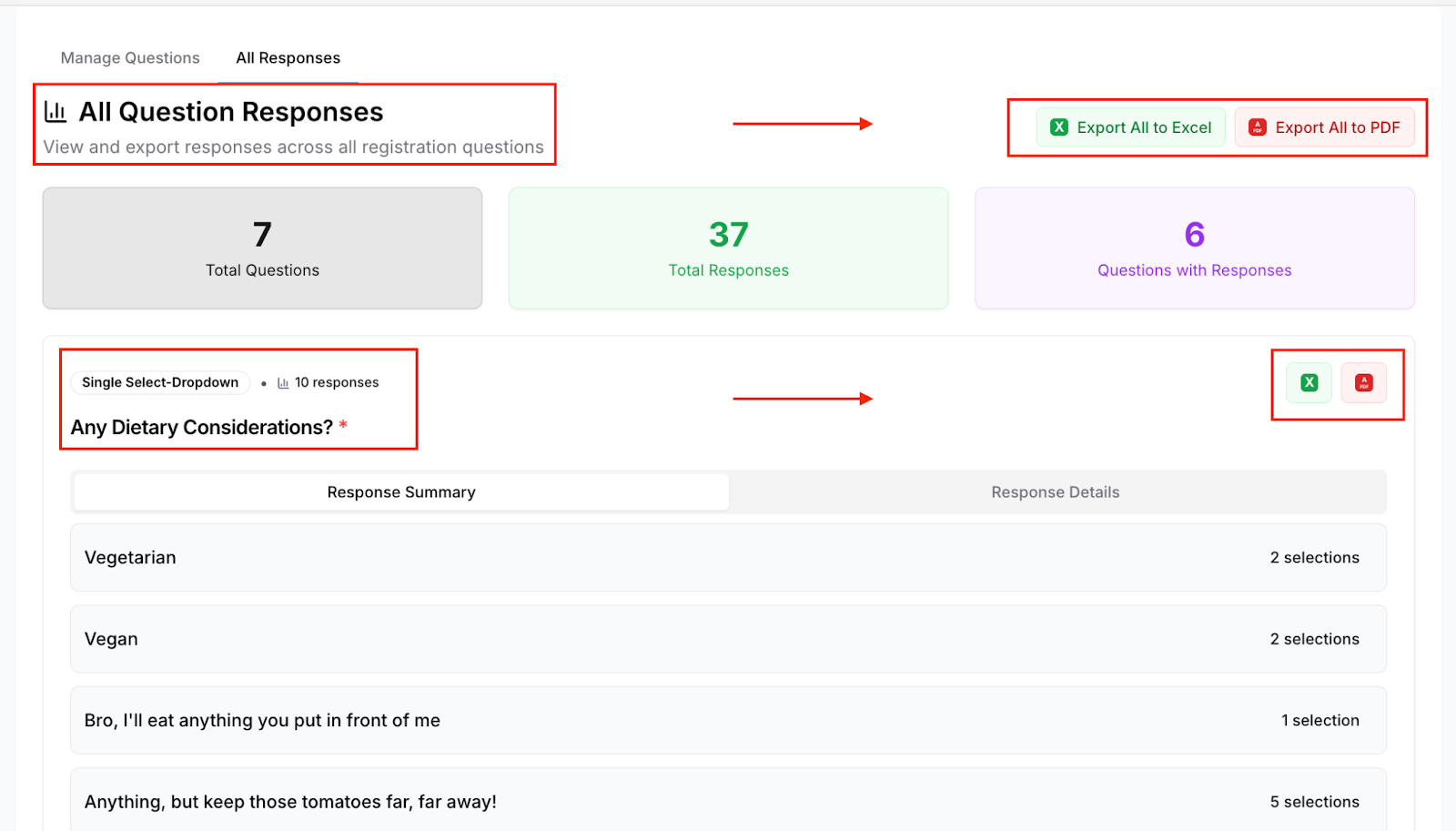
5. Exported Responses (PDF Preview):
This preview shows how all registration responses appear when exported to PDF. 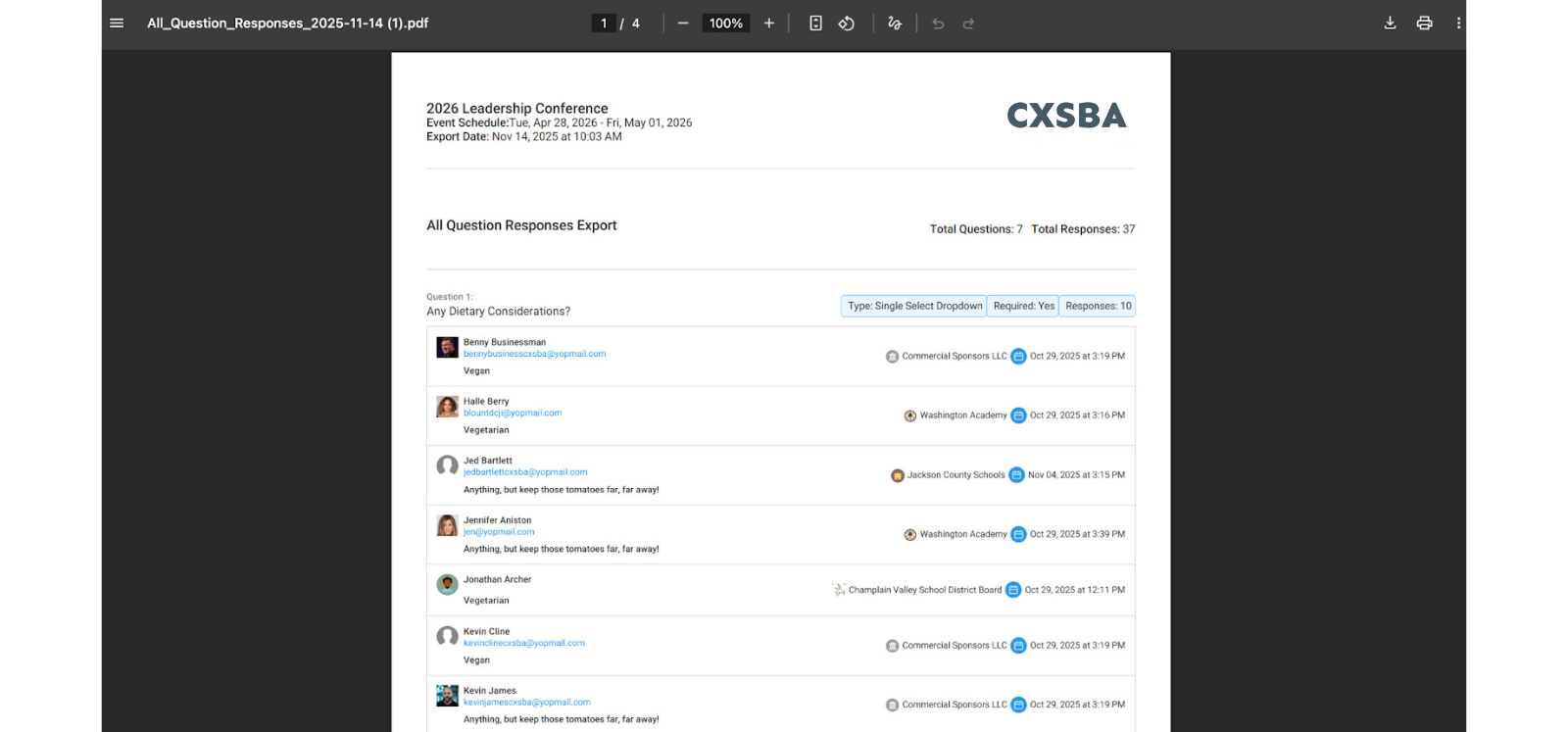
We hope this update improves your experience with Engagifii.
Have questions or feedback? Please write to our support team at support@engagifii.com