
Summary
Event bundles group multiple event activities, days, classes or sessions into a single package for registrants to purchase together.
Engagifii allows you to set quantity limits for event bundles to prevent overselling and ensure bundles remain available within your planned capacity. You can control how many bundles each registrant can purchase and set an overall sales limit for bundles such as meal tickets, companion registrations, and exhibit tickets that do not include classes or sessions.
You can configure two types of limits:
- Limit how many each registrant can buy: Sets the maximum number of bundles an individual registrant can purchase.
- Limit total bundles sold: Sets the maximum number of bundles that can be sold across the entire event.
Note: Bundles that include classes or sessions cannot be purchased multiple times by the same registrant.
How to Configure Bundle Quantities and Limits
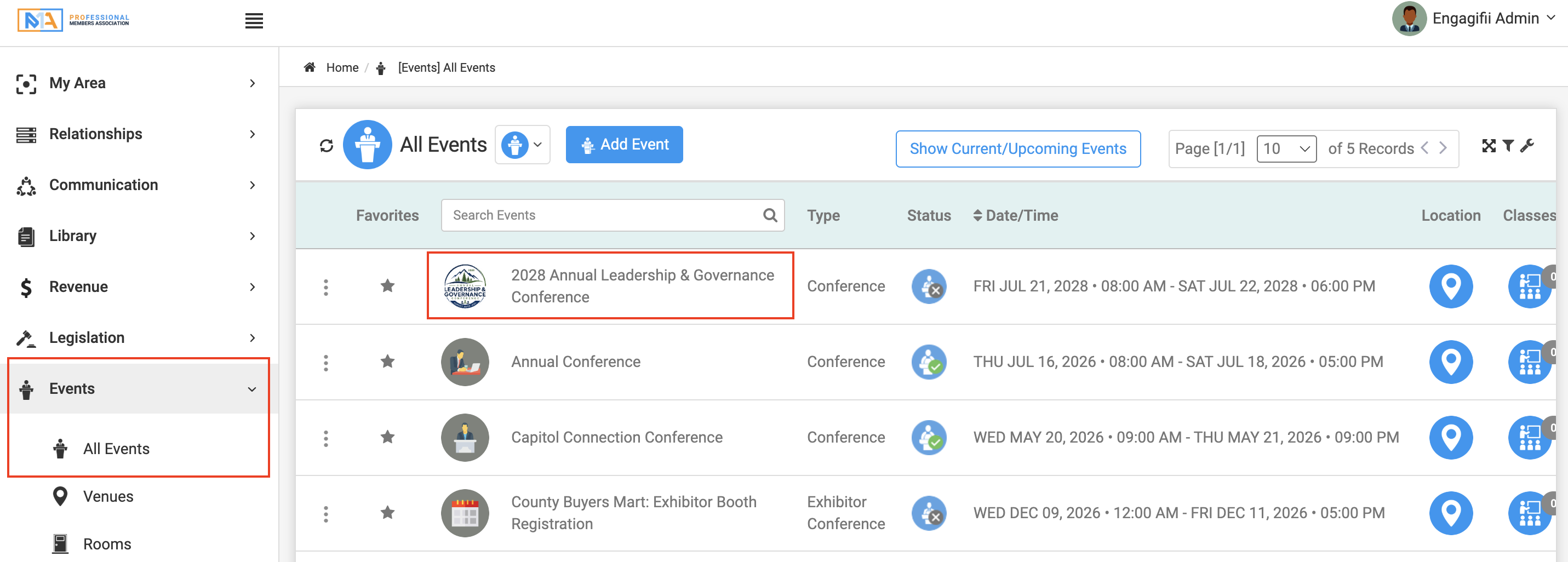
Step 1: Navigate to the Events Module
- Navigate to All Events.
- Select the event for which you want to configure bundle quantities and limits.
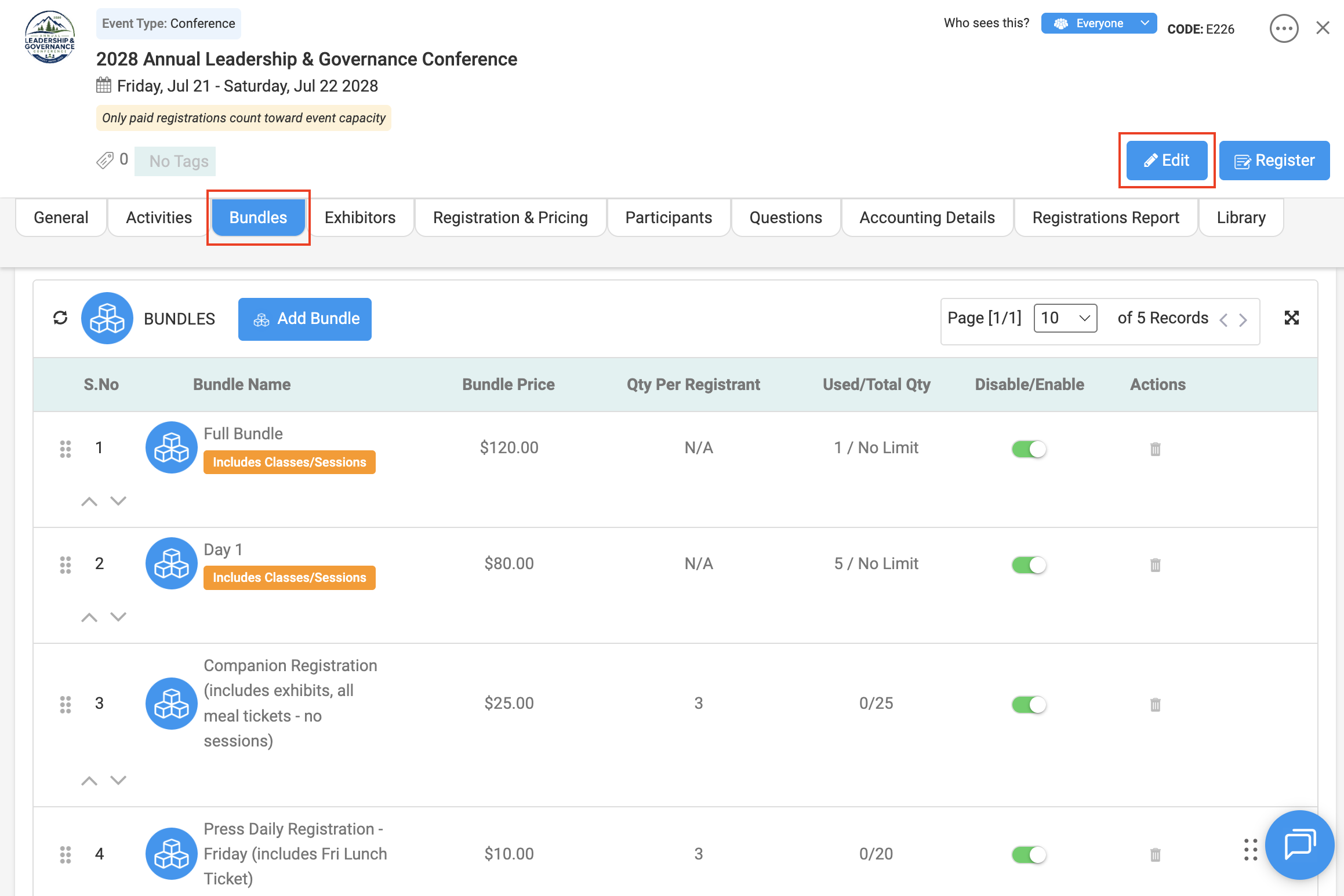
- Navigate to the Bundles tab.
- Click the Edit icon to open the event for editing.
Step 2: Select the Bundle You Want to Configure
On the Bundles tab, you can view the bundles associated with the event, edit existing bundles, or create a new bundle.
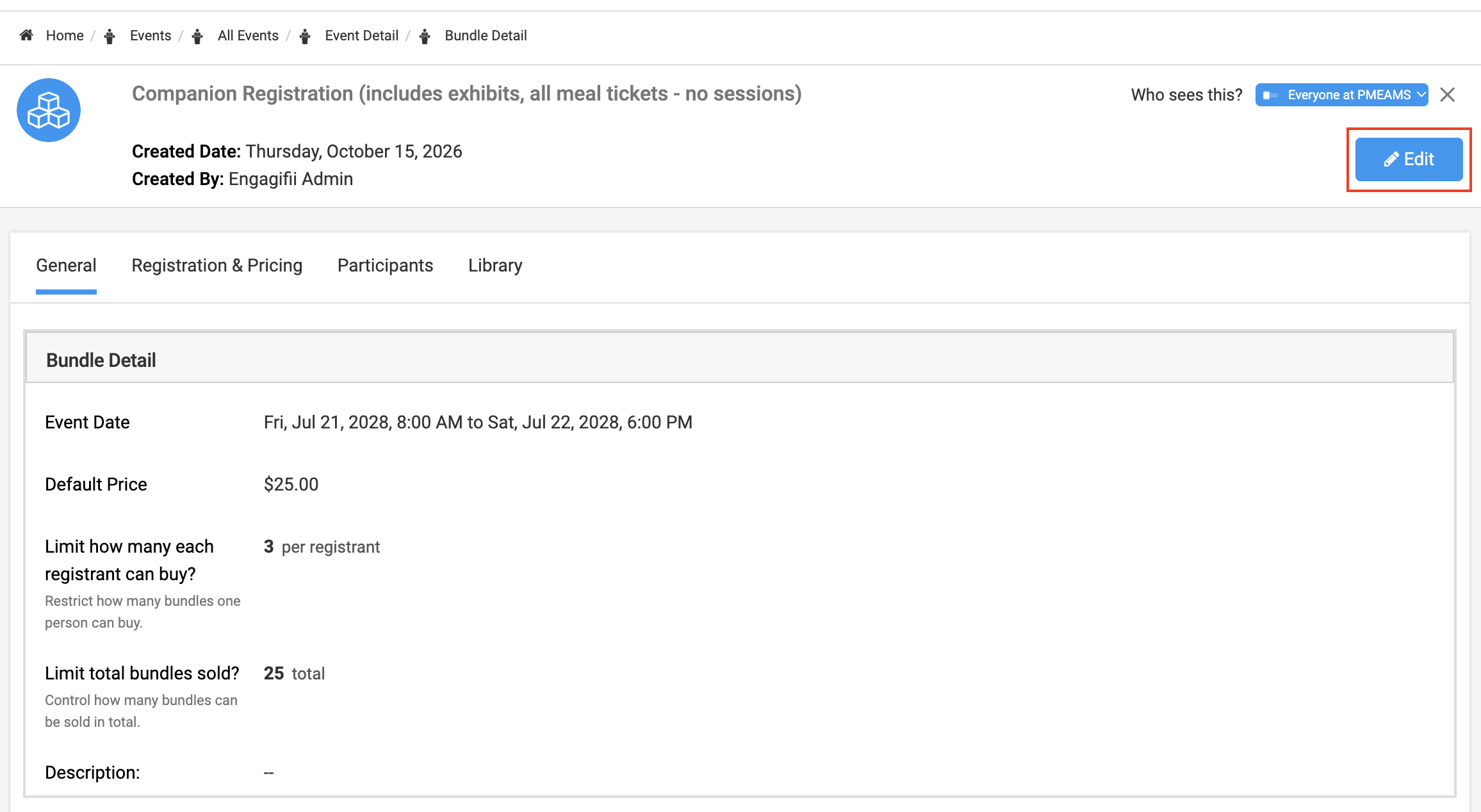
- Select the bundle you want to update.
- Open the bundle details.
- Click the Edit button to modify the bundle settings.
Note: Quantity per registrant is not applicable to bundles that include classes or sessions. These bundles can only be selected once per registrant.
Step 3: Set the Maximum Quantity per Registrant
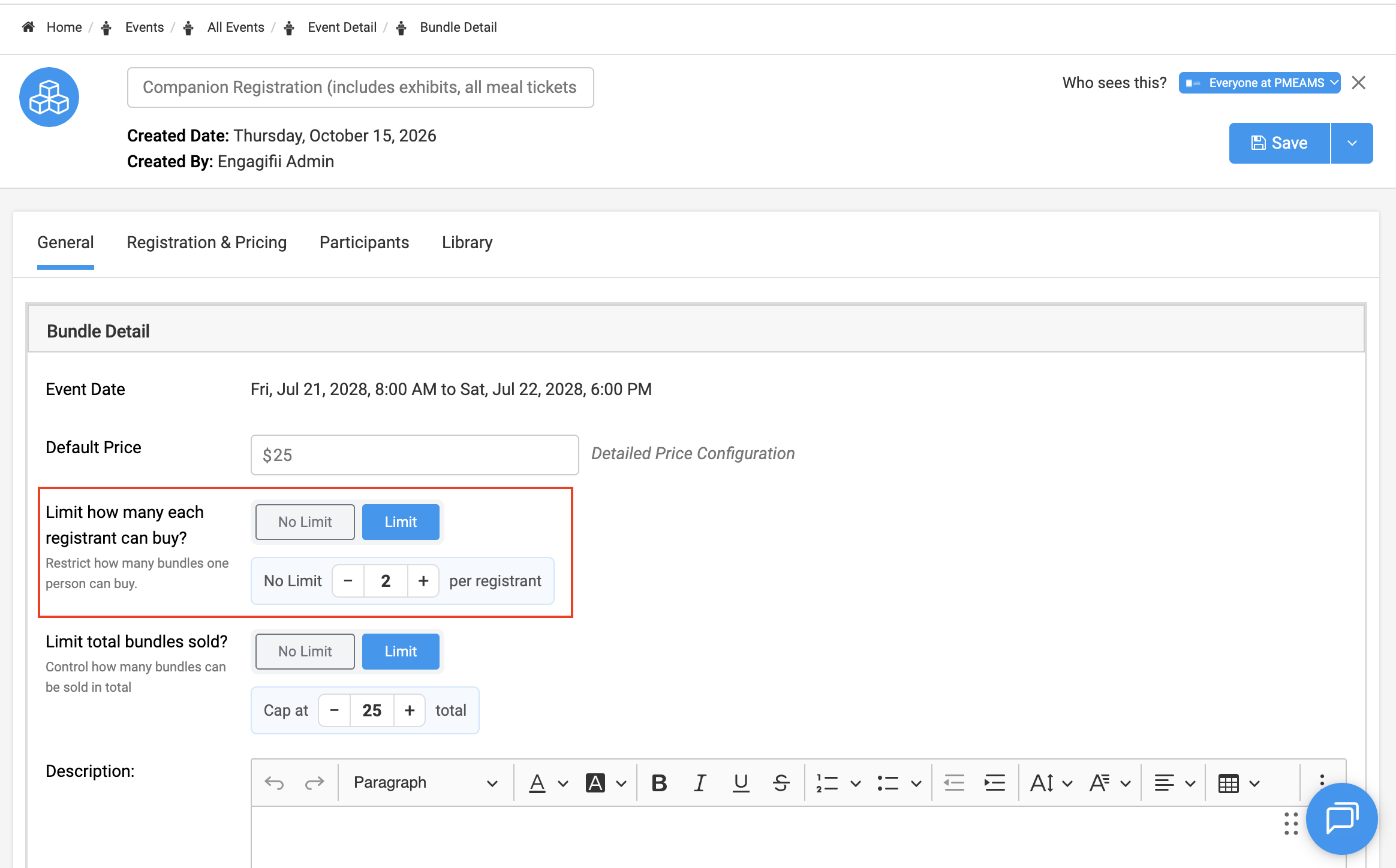
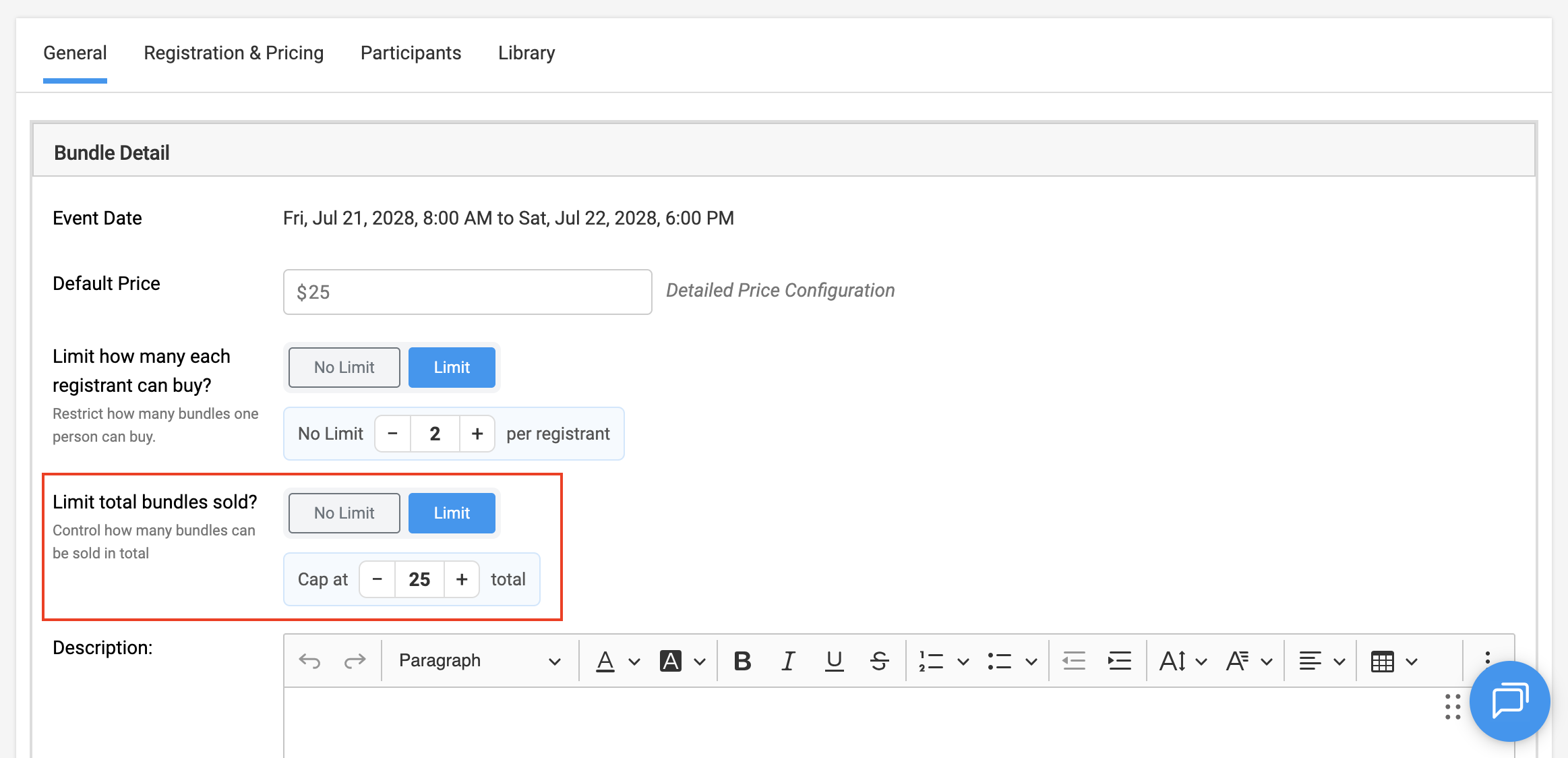
The Limit how many each registrant can buy option allows you to control how many units of a bundle an individual registrant can purchase.
- Under the General tab, locate Limit how many each registrant can buy.
- Use the + and − buttons to increase or decrease the quantity limit.
- Set the maximum quantity a registrant can purchase.
For example, if you set the limit to 3, a registrant can purchase up to three units of that bundle. - If you do not want to set a maximum quantity per registrant, select No Limit.
Step 4: Set the Total Bundle Quantity Limit
The Limit total bundles sold option allows you to control the maximum number of units of a bundle that can be sold across the entire event.
- Locate Limit total bundles sold under the General tab.
- Set the total quantity using the + and − buttons.
- Enter the maximum number of bundles you want to make available for the event.
For example, if you set the limit to 20, a maximum of 20 units of that bundle can be sold across the event. - If you do not want to set a total quantity limit, select No Limit.
- Click Save to apply the changes.
Note: The per-registrant limit and total bundle limit work independently. When both limits are configured, a registration must satisfy both limits to proceed.
How Bundle Quantity Limits Work During Registration
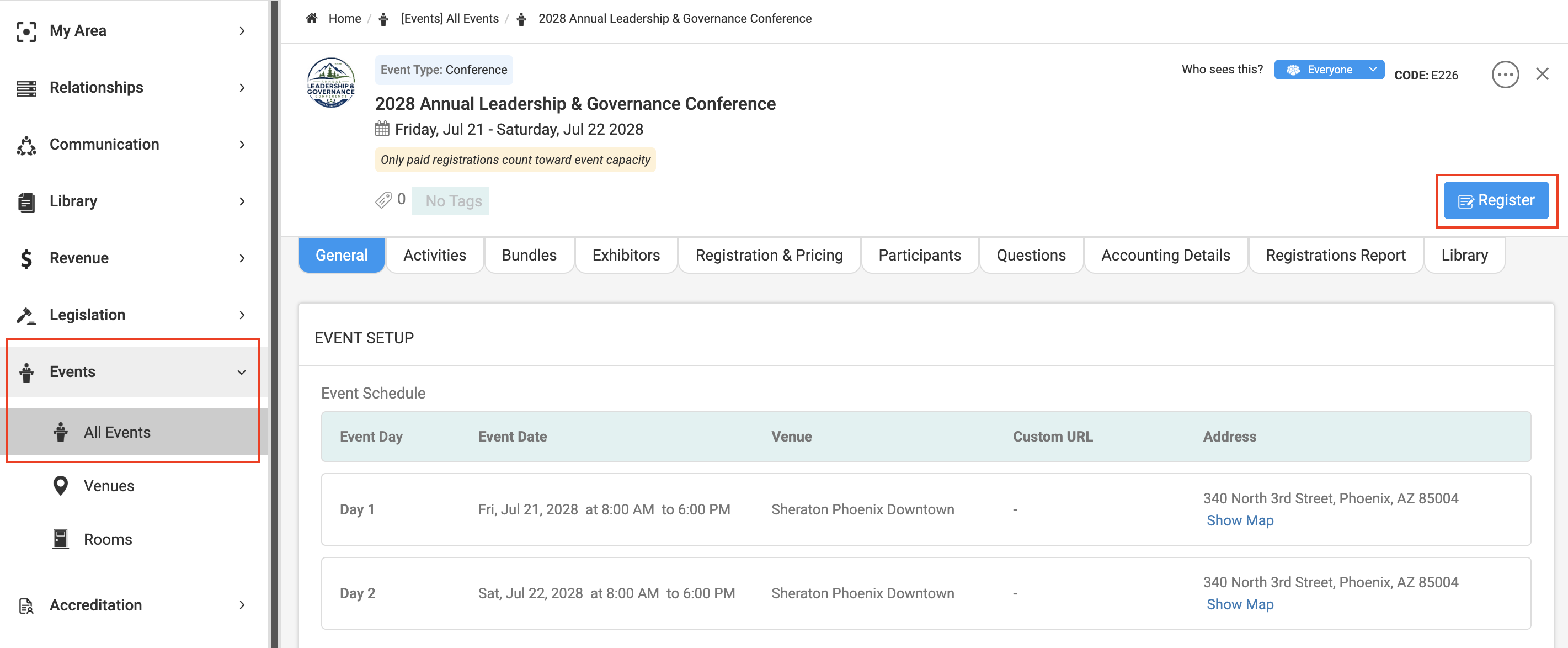
Step 5: Open the Event Registration Page
- Under All Events > Select the Event for which you want to register
- Click Register to begin registration.
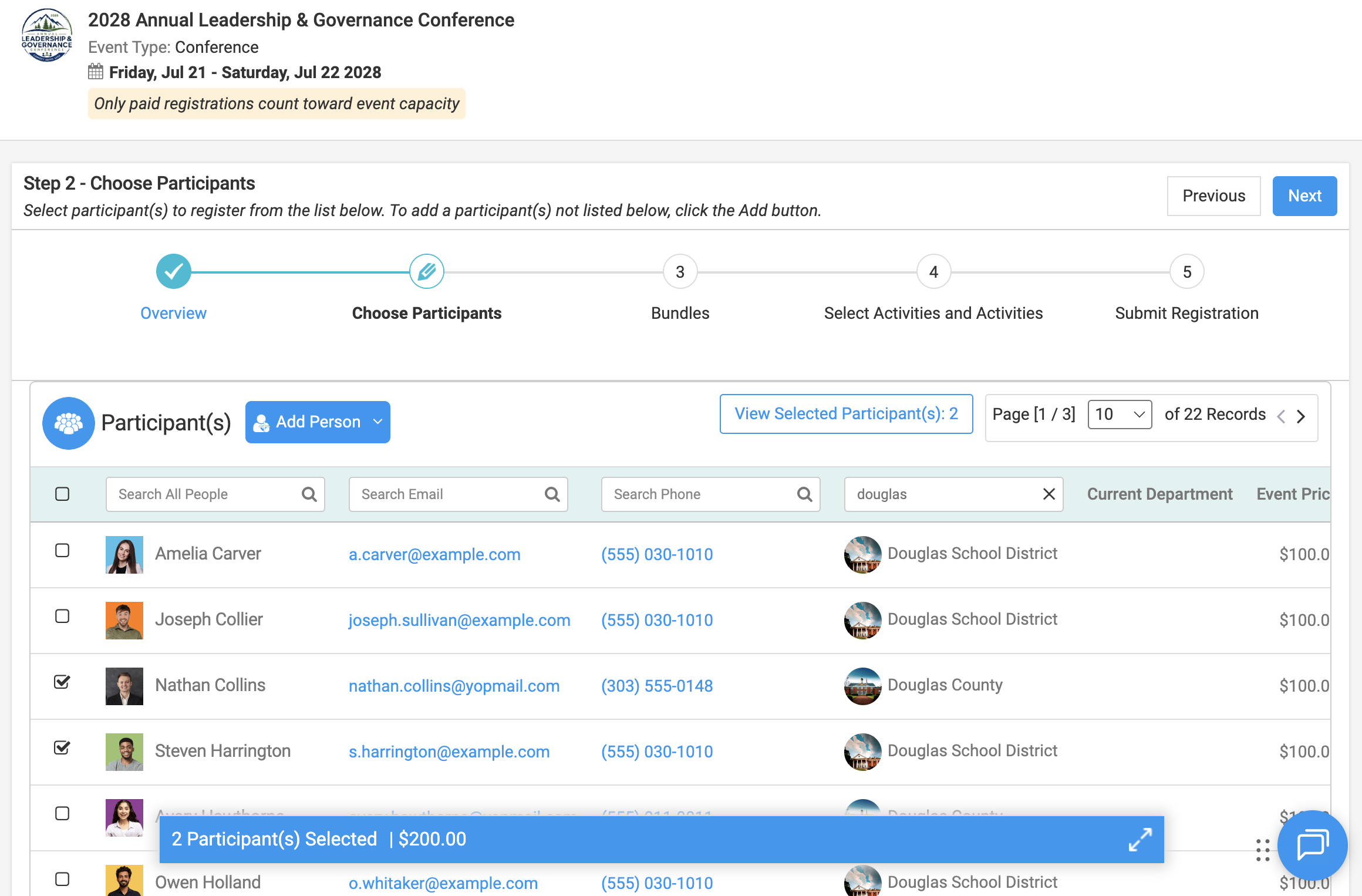
- Complete the required registration details and select the participants.
Step 6: Select Bundles and Specify Quantities
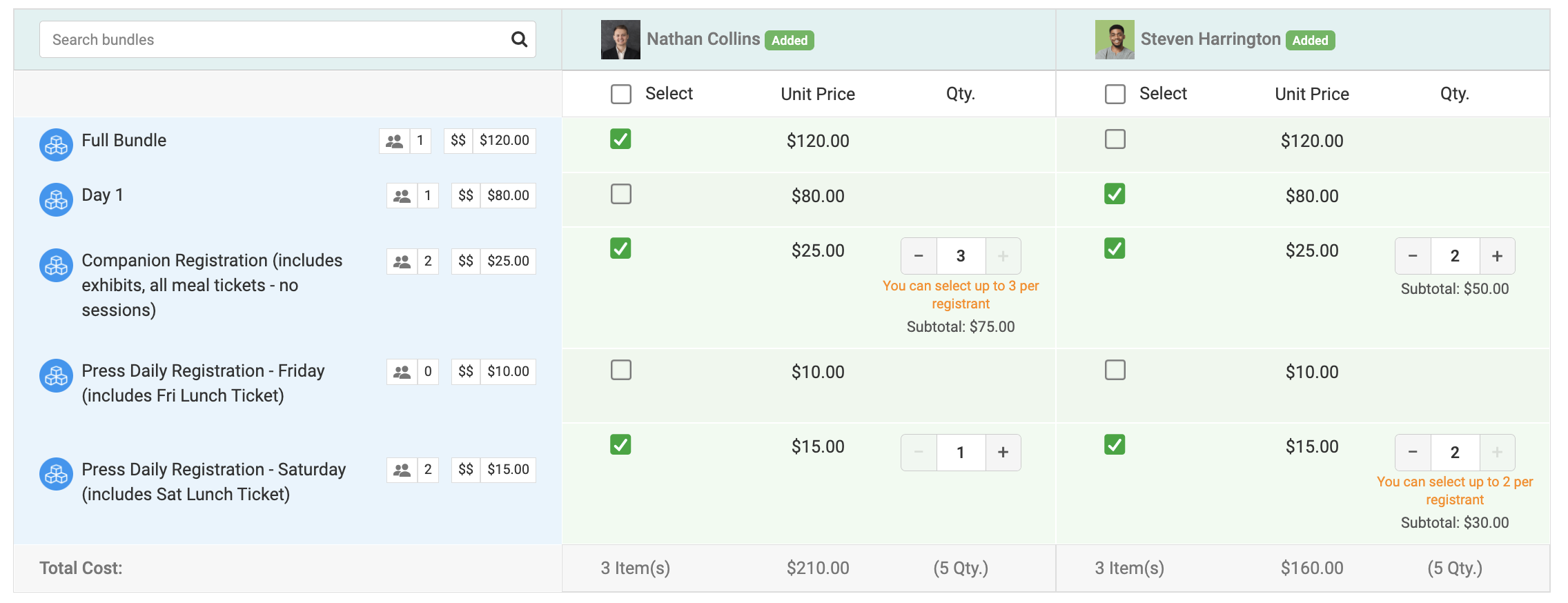
On the bundle selection screen, the available quantity options depend on the bundle configuration.
For bundles that include classes or sessions:
- Select the required bundle.
- The bundle can only be selected once per registrant.
- You cannot increase the quantity for that bundle.
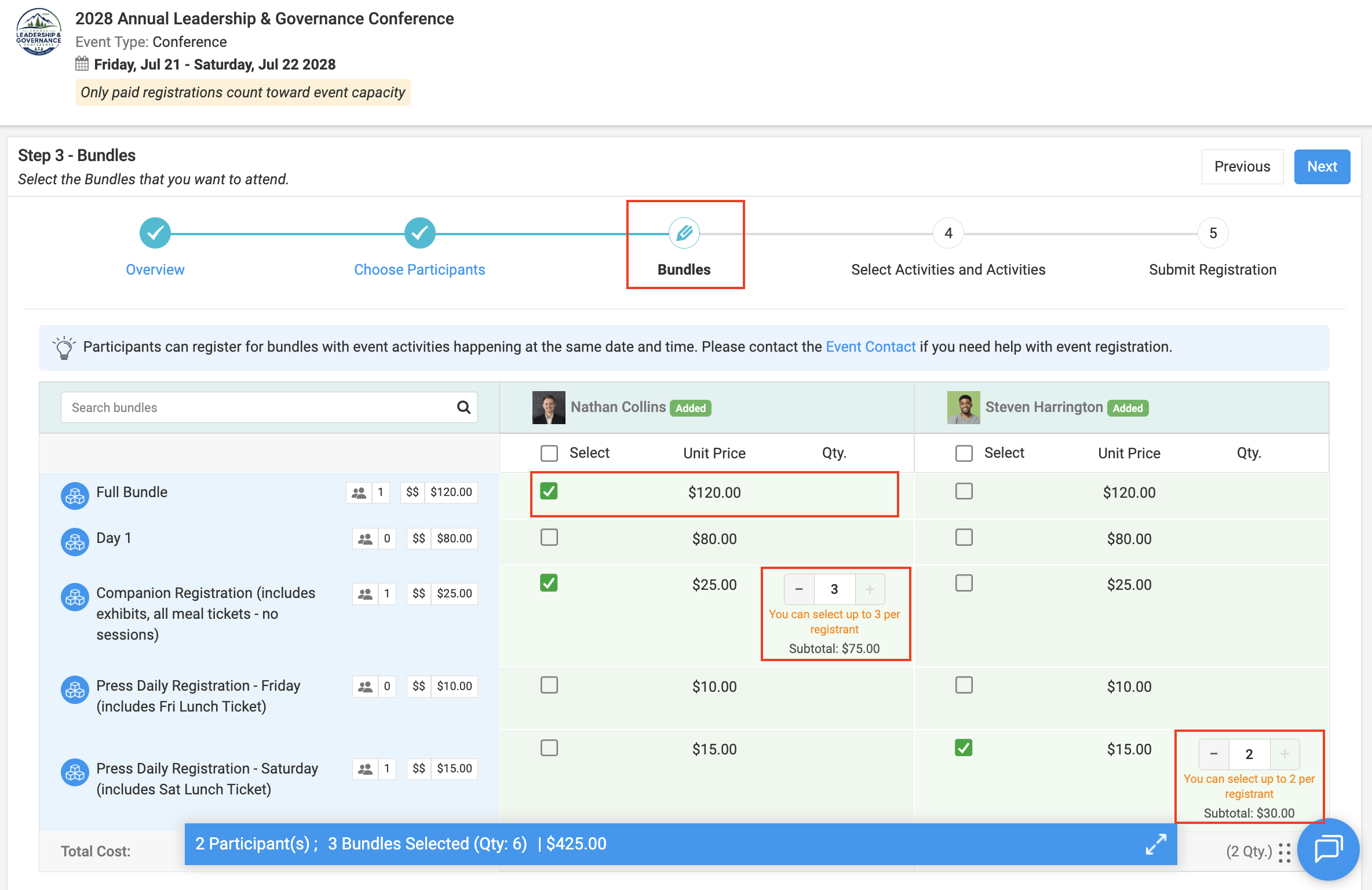
For bundles without classes or sessions:
- Select the required bundle.
- Use the quantity control that appears to increase or decrease the number of units.
- Select the quantity you want to register.
Step 8: Check the Quantity Limit Messages
When selecting bundle quantities, Engagifii validates the selection against the configured limits.
- Per-registrant limit: If you reach the maximum quantity allowed for a registrant, an on-screen message indicates that you can select up to the configured number per registration.
- Total bundle limit: If the total number of bundles available has been reached, the system indicates that the bundle's capacity has been reached and prevents additional purchases.
If both limits apply, you must satisfy both before proceeding.
Step 9: Complete the Registration
- Review the selected bundles and quantities.
- Click Next to continue with the registration process.
The selected bundle quantities will be reflected in the relevant registration and billing records, including invoices and registration details.
Frequently Asked Questions
1. Can I set a quantity limit for a bundle that includes classes or sessions?
You can set a total bundle quantity limit, but you cannot configure a quantity per registrant for bundles that include classes or sessions.
2. Can I allow unlimited quantities for a bundle?
Yes. Select "No Limit" for the applicable quantity setting if you do not want to enforce that limit.
3. What happens when the total bundle quantity limit is reached?
Once the total quantity limit has been reached, additional purchases of that bundle are not allowed.
4. Are bundle quantities reflected in invoices?
Yes. The selected quantities are reflected in the relevant invoices and registration records, and the total amount is calculated using the applicable unit price and quantity.
Closing
With bundle quantity limits in place, you can seamlessly manage bundle availability, control purchases, and keep event registrations within your planned capacity. For additional assistance, please contact Engagifii Support at support@engagifii.com.