
Summary
Engagifii Event Badges allow administrators to create, customize, and save reusable badge templates. You can choose from predefined layouts, adjust colors and fonts, add logos or background images, and select the participant information displayed on each badge.
Once your template is ready, you can generate badges for selected event participants, organize their printing order, and download a PDF formatted for your chosen label stock.
This guide walks you through creating badge templates, customizing their appearance, and generating badges for your events.
Part 1: Create and Customize Badge Templates
Step 1. Open Badge Templates
- Log in to Engagifii.
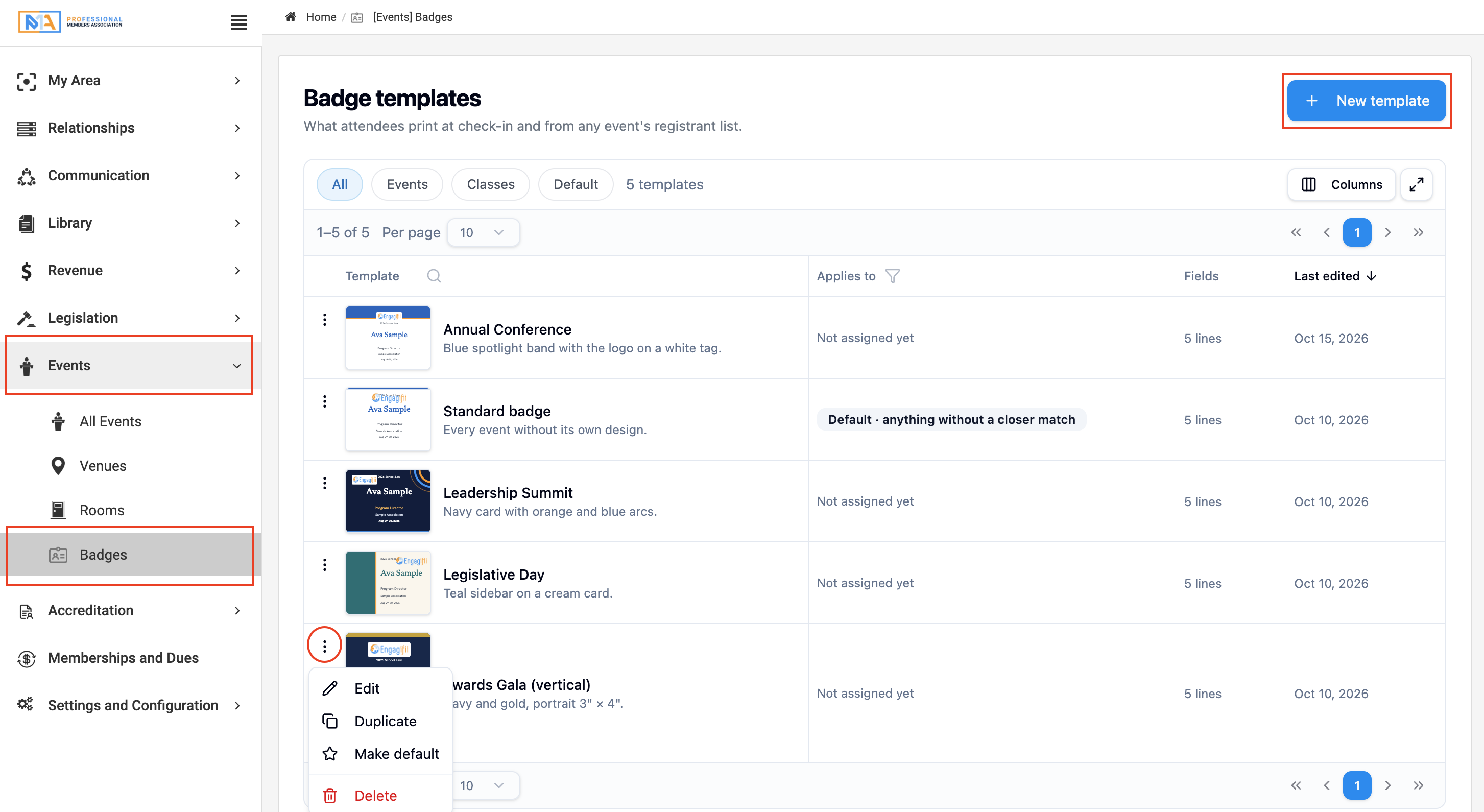
- Navigate to Events → Badge Templates from the left-hand menu.
- You'll see a list of previously created badge templates, along with their applicability and other details.
- Click an existing template to edit it, or select New Template to create one from scratch.
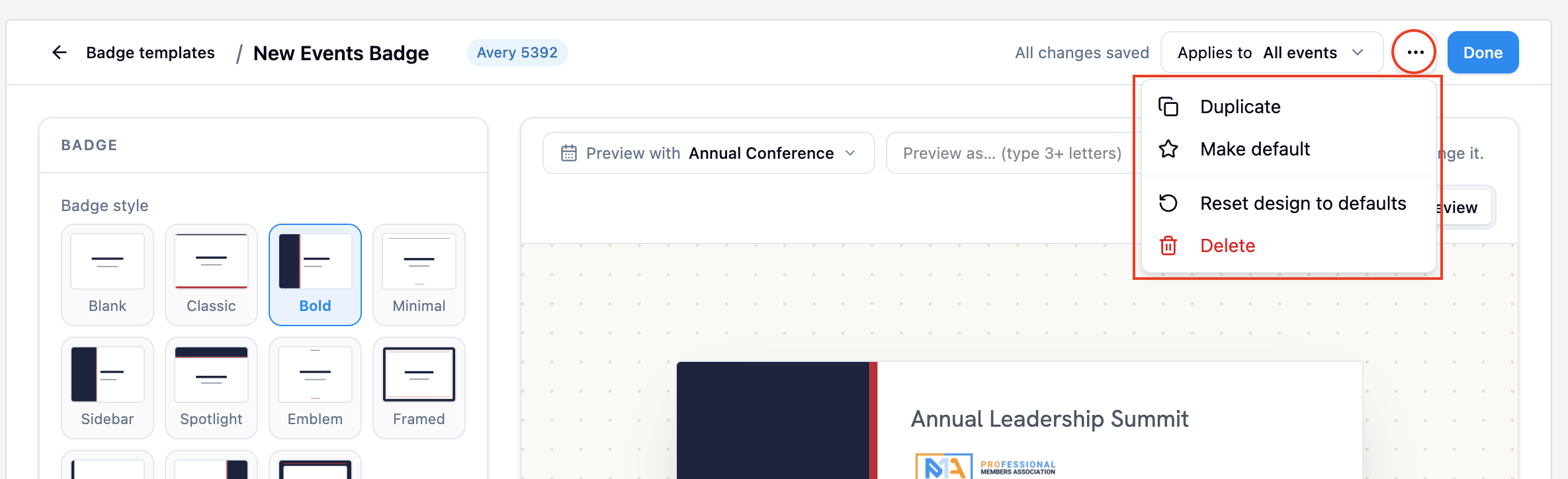
You can also use the three-dot menu ( ⋮ ) next to a template to duplicate it, set it as the workspace default, or delete it.
Step 2. Choose a Badge Style and Label Stock
After opening the Badge Designer, you can start customizing your badge.
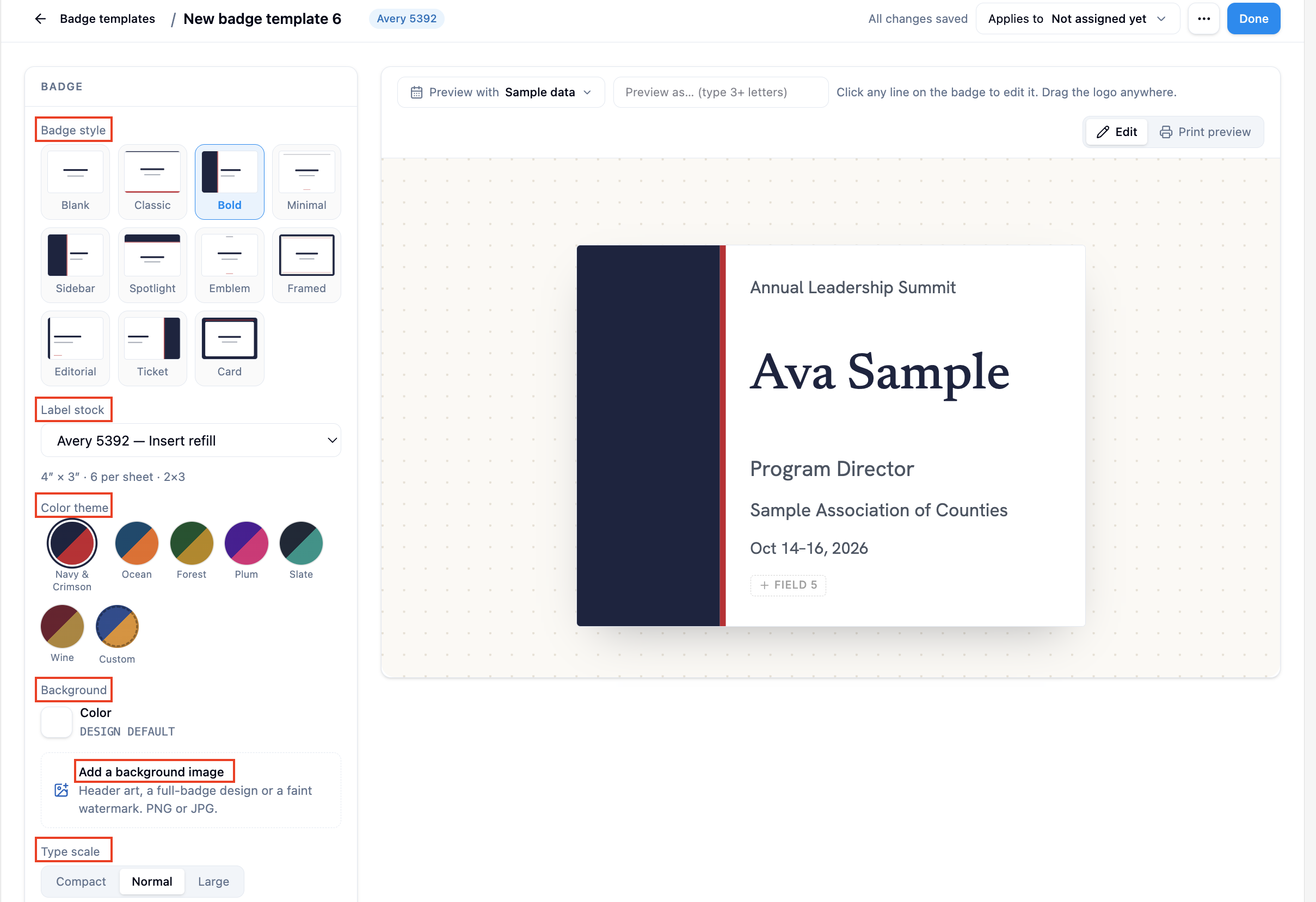
Under the Badge section:
- Badge Style: Choose from 11 predefined styles, including Blank, Classic, Bold, Minimal, Sidebar, Spotlight, Emblem, Framed, Editorial, Ticket, and Card.
- Label Stock: Select the label stock you plan to use for printing, such as Avery 5392.
- Color Theme: Choose a predefined color theme or select Custom to configure your own primary and accent colors.
- Background Color: Select a background color that complements your badge design.
- Background Image: Upload an image to use as a decorative background, header design, or watermark.
- Type Scale: Choose Compact, Normal, or Large to adjust the overall text sizing.
As you make changes, the badge preview updates automatically.
Step 3. Add and Customize Your Event Logo
You can add your organization's or event's logo to personalize the badge.
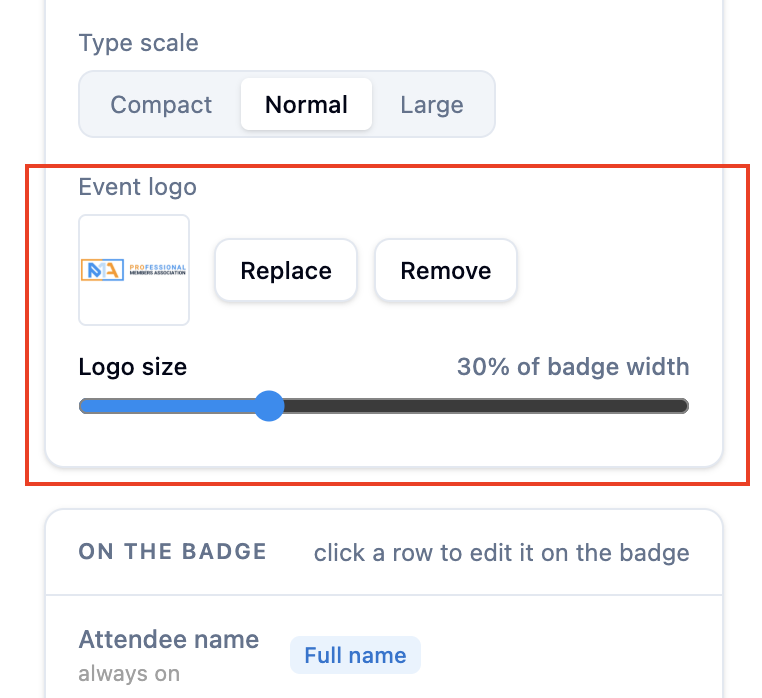
- Under Event Logo, upload your logo.
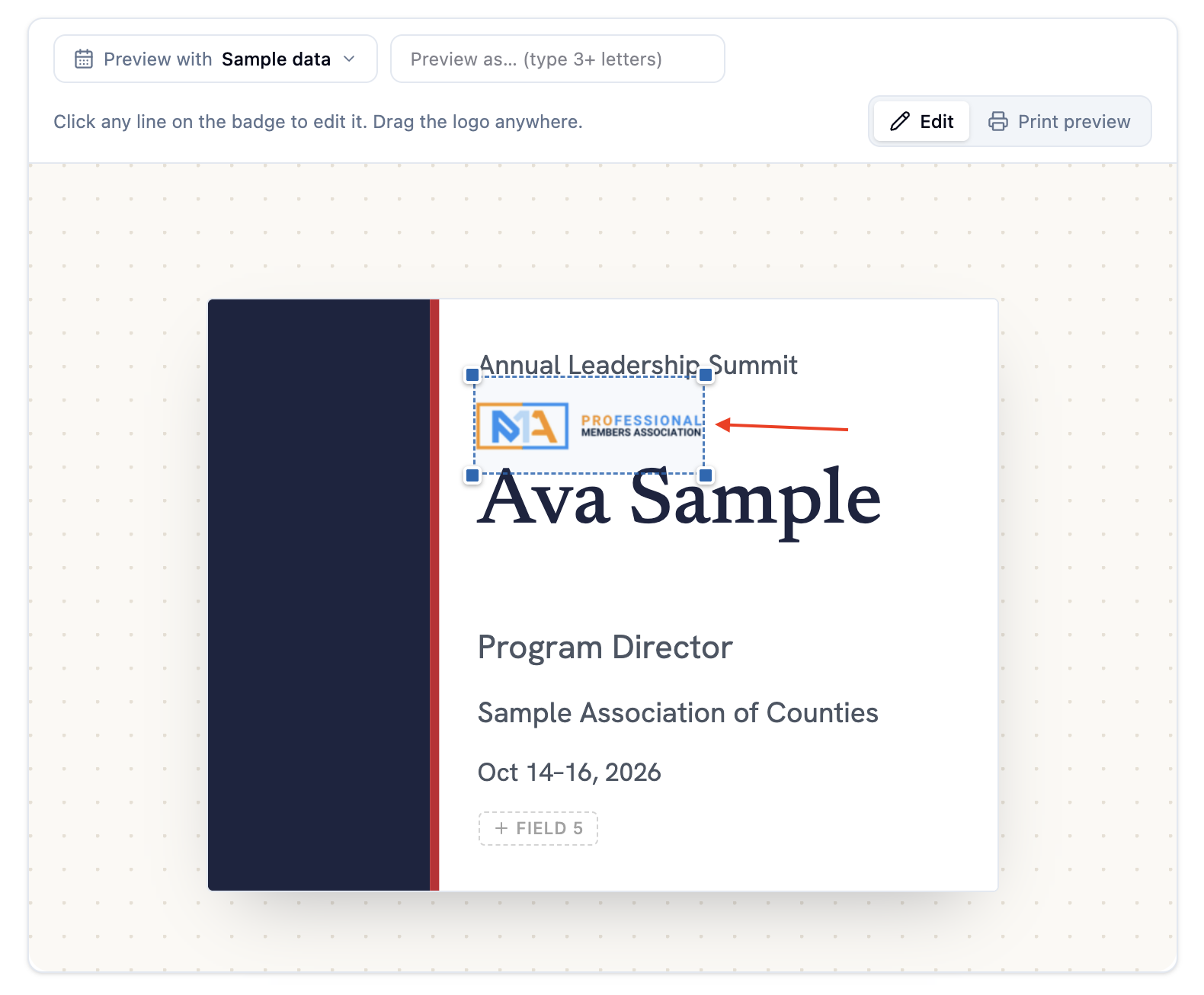
- Drag the logo to position it anywhere on the badge.
- Resize it by dragging its corners or adjusting the Logo Size control.
- Use Replace or Remove if you want to change the logo.
The logo can be positioned independently without changing the placement of other badge information.
Part 2: Customize Badge Information and Preview the Design
Step 4. Add and Format Badge Fields
Engagifii allows you to customize the information displayed on each badge, such as participant names, organizations, titles, and event details.
- In the On the Badge section, select the text line you want to customize.
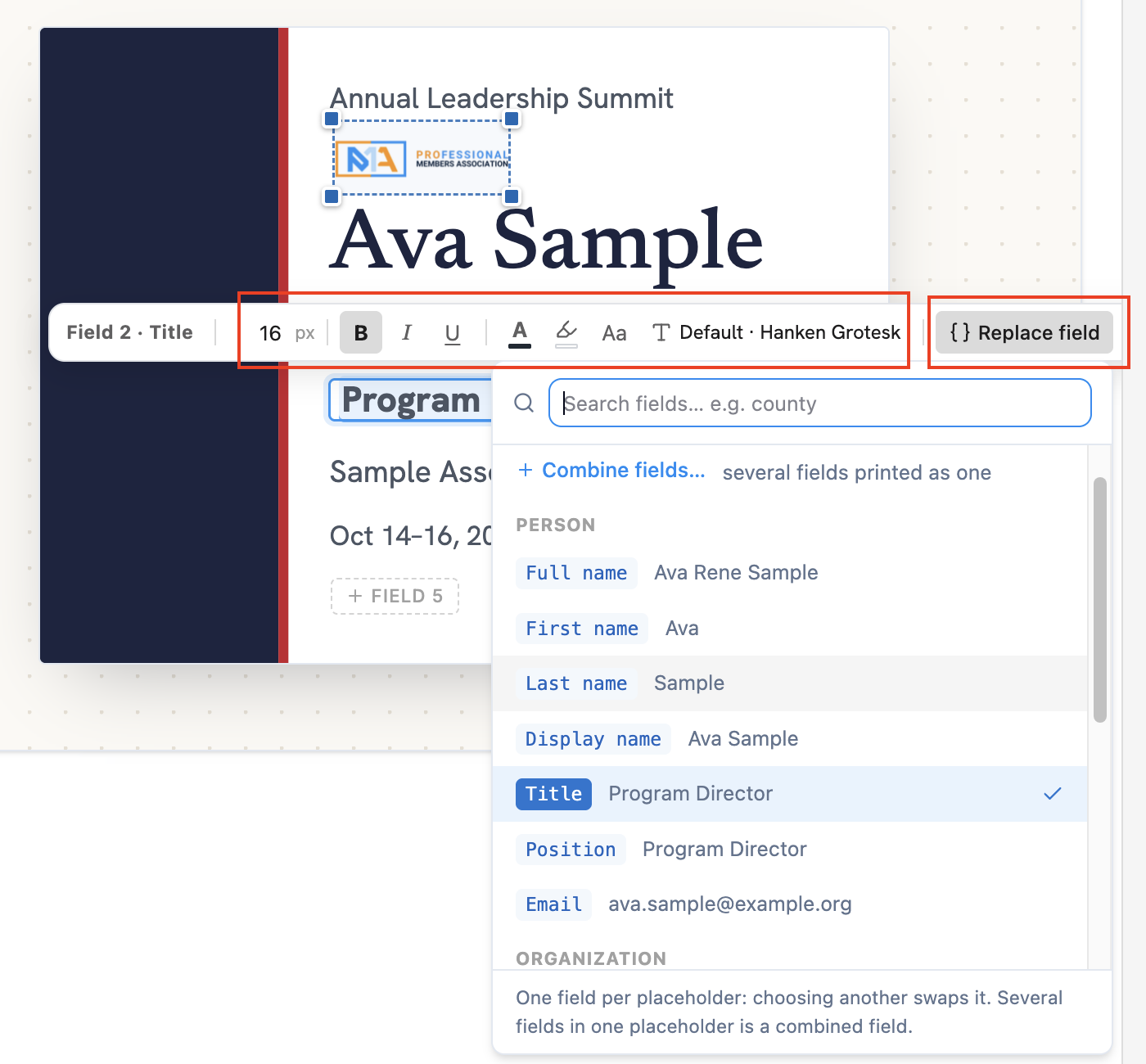
- Use the formatting options to adjust the font, size, color, bold, italic, underline, highlighting, and capitalization.
- Click Replace Field to change the information displayed in an existing line.
- For an empty line, click Insert a Field and select the information you want to display.
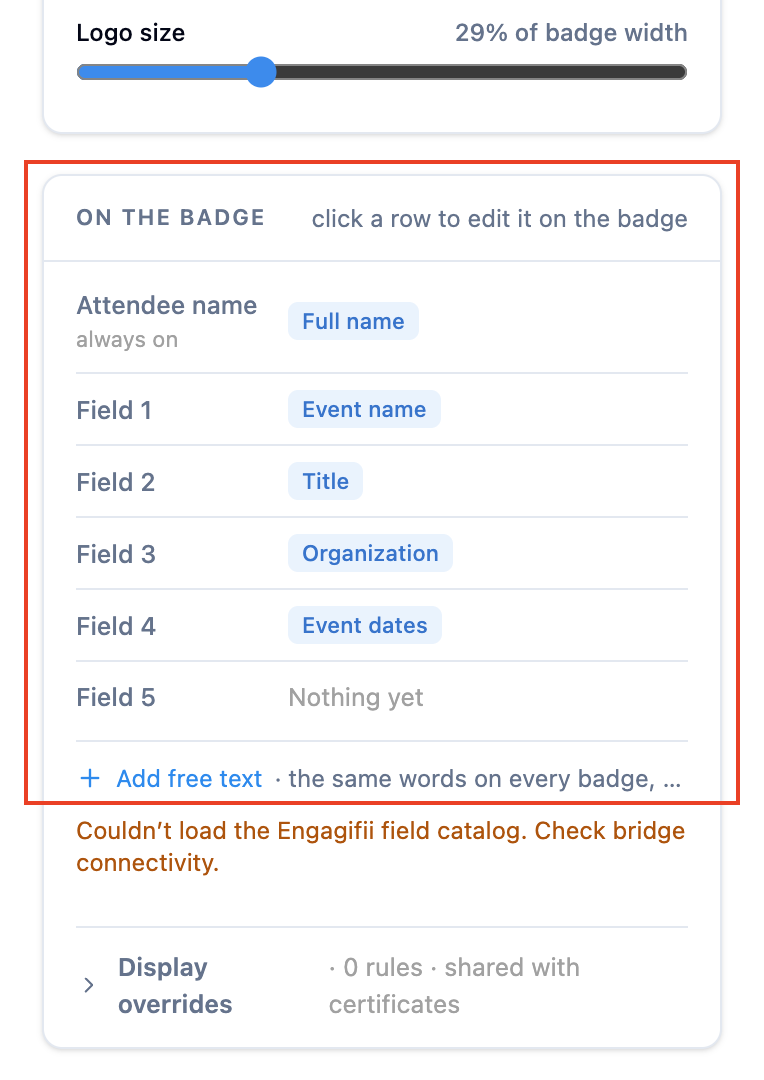
Available fields may include:
- Participant Name
- Event Name
- Organization Name
- Position or Title
- Event Dates
- Other available participant or event information
You can customize up to six lines of badge information, with the attendee's name appearing as the first line.
Step 5. Configure Display Overrides
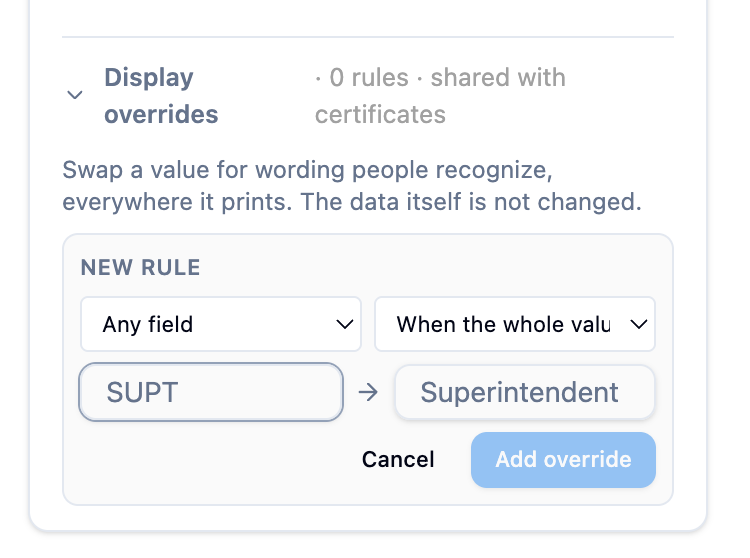
If you want certain values to appear differently on printed badges, you can use Display Overrides.
For example, you may want to display Superintendent as Supt. to save space or use terminology familiar to your organization.
- Locate the Display Overrides section.
- Add the original value and the wording you want displayed.
- Configure additional overrides as needed.
These changes affect how information appears on the badge without modifying the original data stored in Engagifii.
Step 6. Preview Your Badge Design
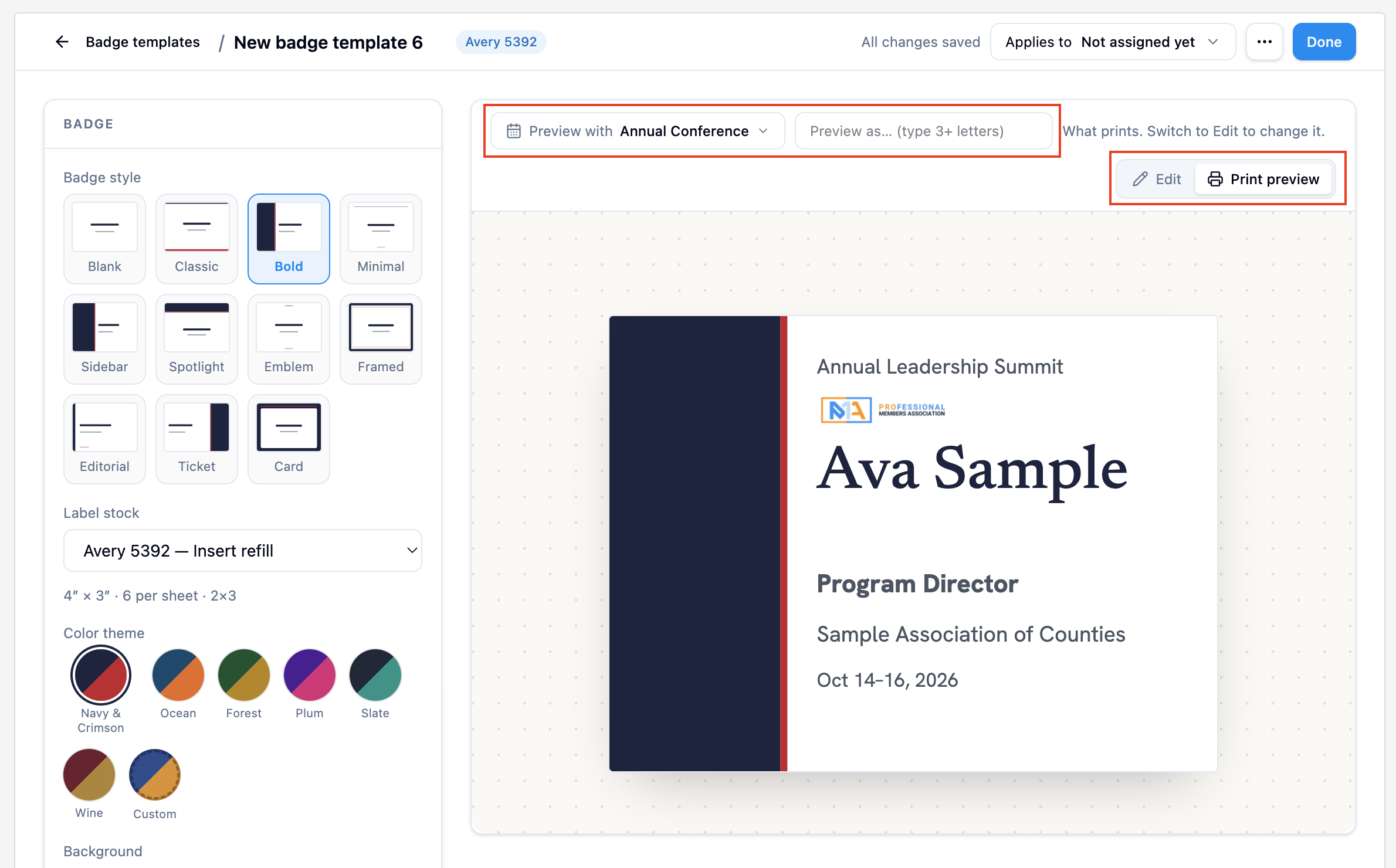
Before finalizing your template, use the preview tools to check how the badge will appear.
- Switch between Edit and Print Preview to review your design without editing outlines or controls.
- Use Preview With to select an event and view its information on the badge.
- Use Preview As to select a registered participant and see how their information will appear.
This helps you confirm that names, titles, event details, and other fields fit properly within the design.
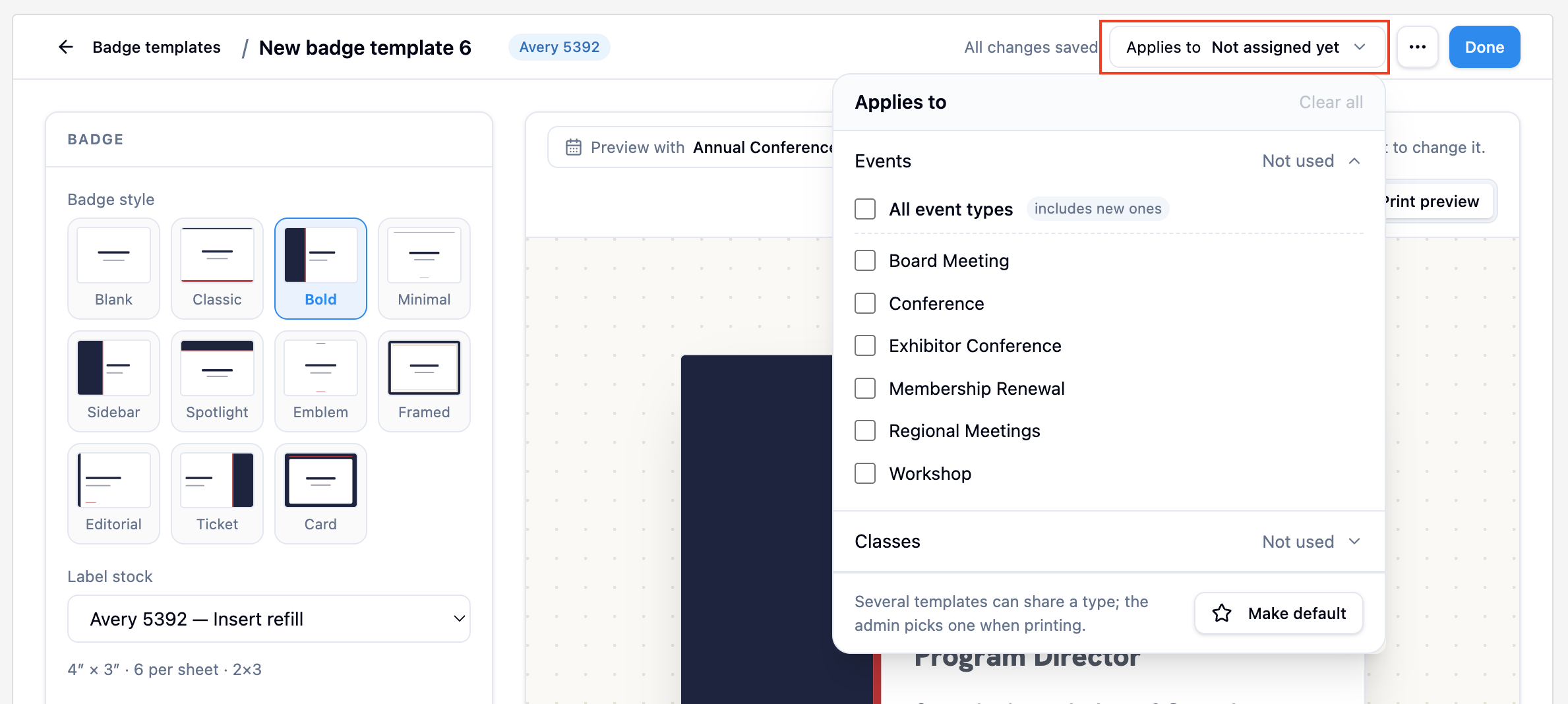
Step 7. Set Template Applicability and Finish
Once you're satisfied with your design, choose where the template should be used.
- Locate Applies To.
- Select All Event Types or choose specific event types or class types.
- Rename your template to make it easier to identify later.
- Click Done when you've finished customizing.
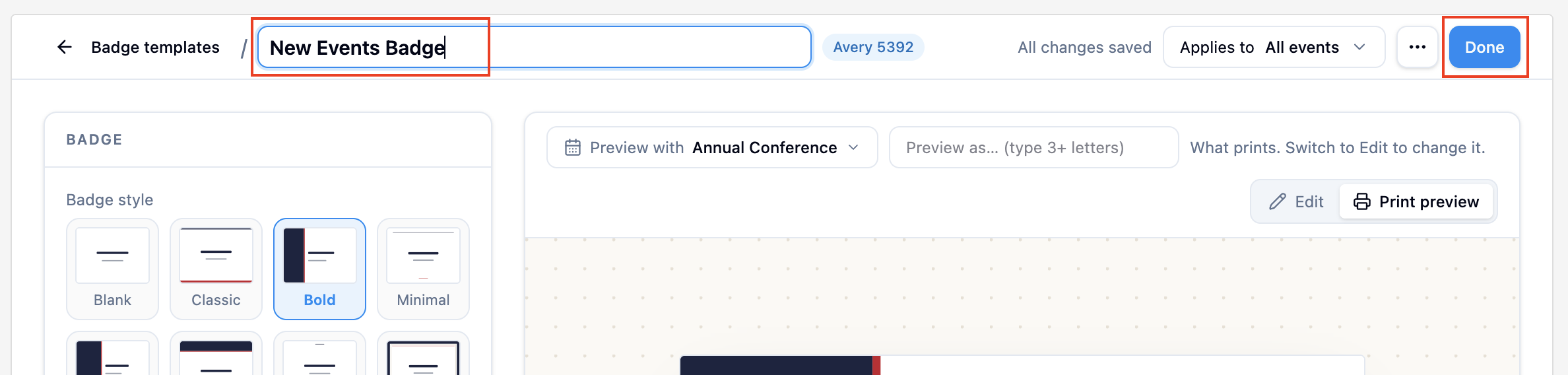
Engagifii automatically saves your changes as you work, so you don't need to manually save each adjustment.
Note: You can also designate a template as the Workspace Default. This template will be available for events that do not have another applicable template.
Part 3: Generate and Print Event Badges
Step 8. Select Event Participants
Once your badge template is ready, you can generate badges for participants registered for an event.
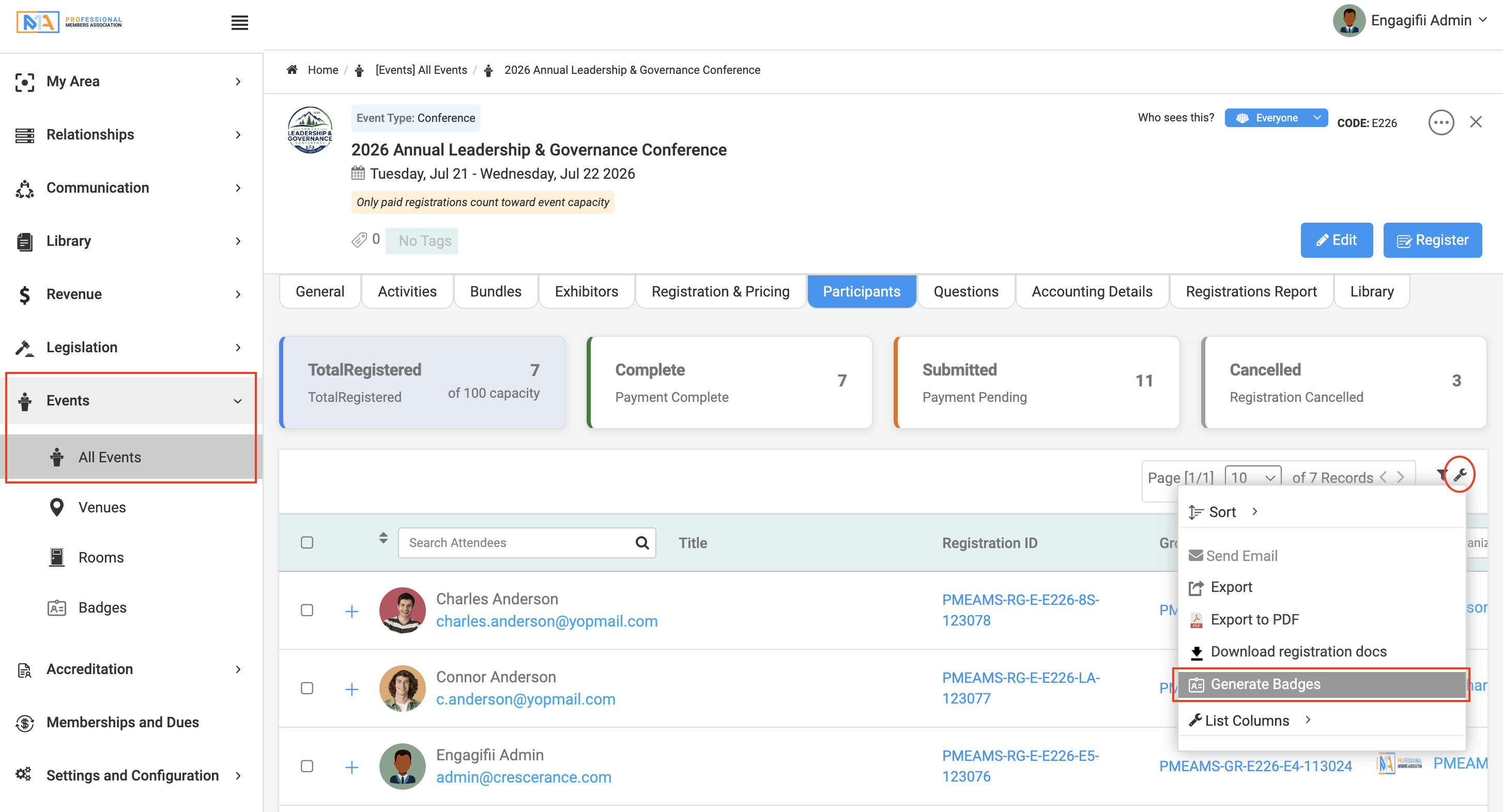
- Navigate to Events and open the event for which you want to generate badges.
- Go to the Participants tab.
- Select the participants who need badges. You can select everyone or choose specific individuals.
- Click the Tools (wrench) icon and select Generate Badges.
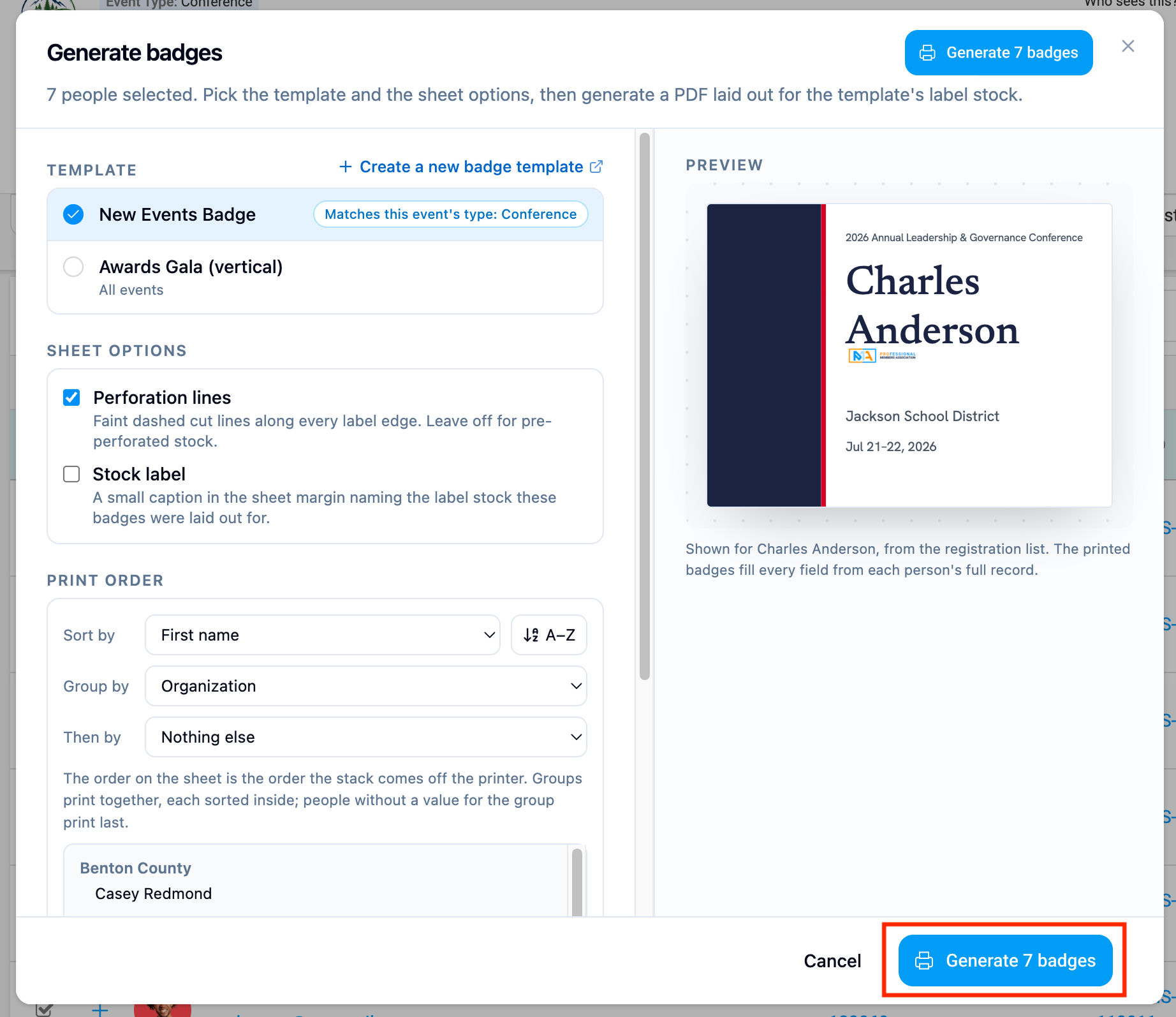
The Generate Badges window will open, allowing you to configure the badges before downloading them.
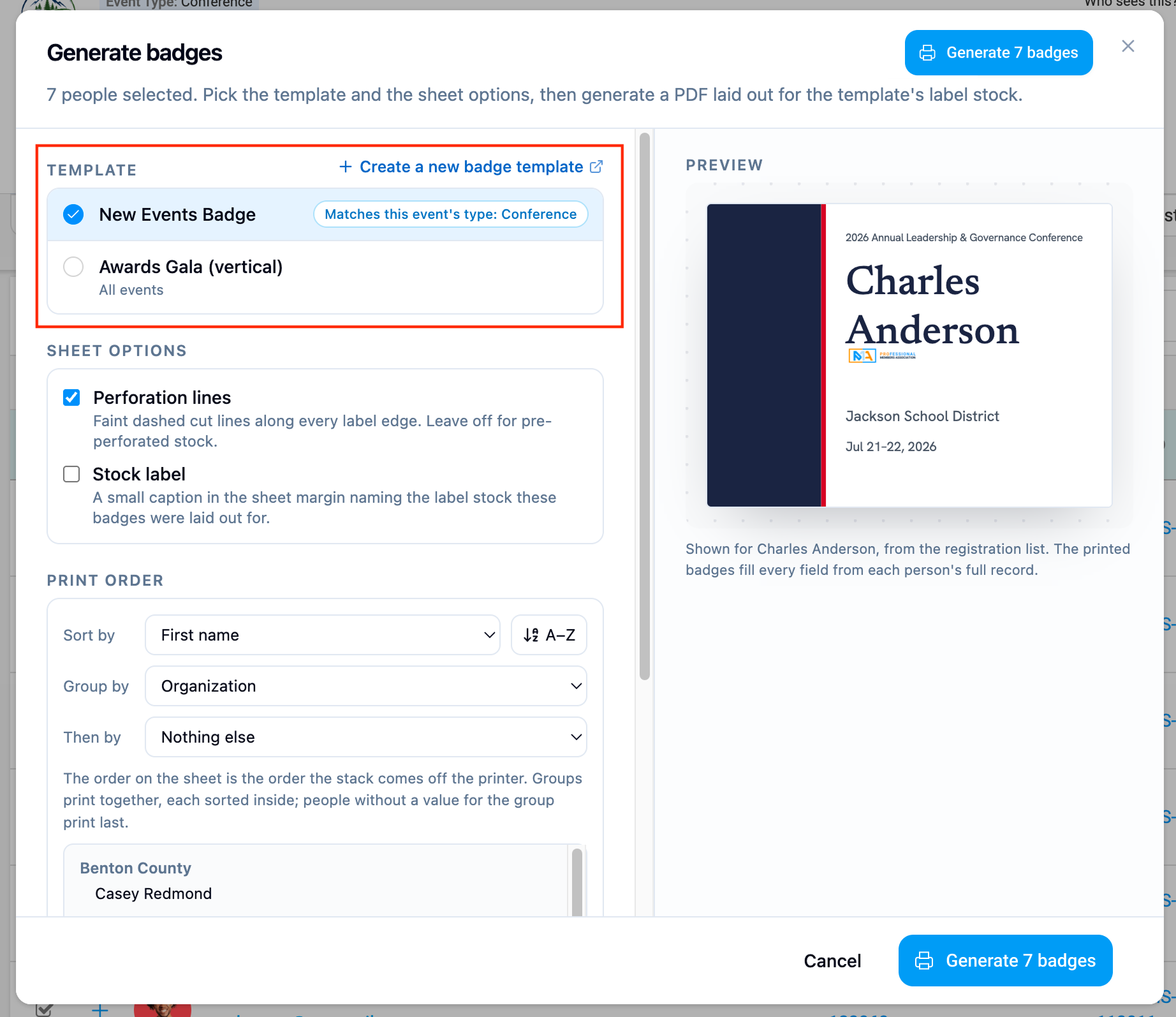
Step 9. Choose a Badge Template
In the Generate Badges window:
- Browse the available badge templates.
- Select the template you want to use.
- Review the badge design in the preview panel on the right.
Engagifii automatically selects the template associated with the event type, if one has been configured. You can choose a different template if needed.
Step 10. Configure Sheet Options and Print Order
Before generating your badges, customize the printing layout.
Sheet Options
- Perforation Lines: Add faint dashed lines along badge edges to make cutting easier.
- Stock Label: Include a small label identifying the selected label stock in the sheet margin.
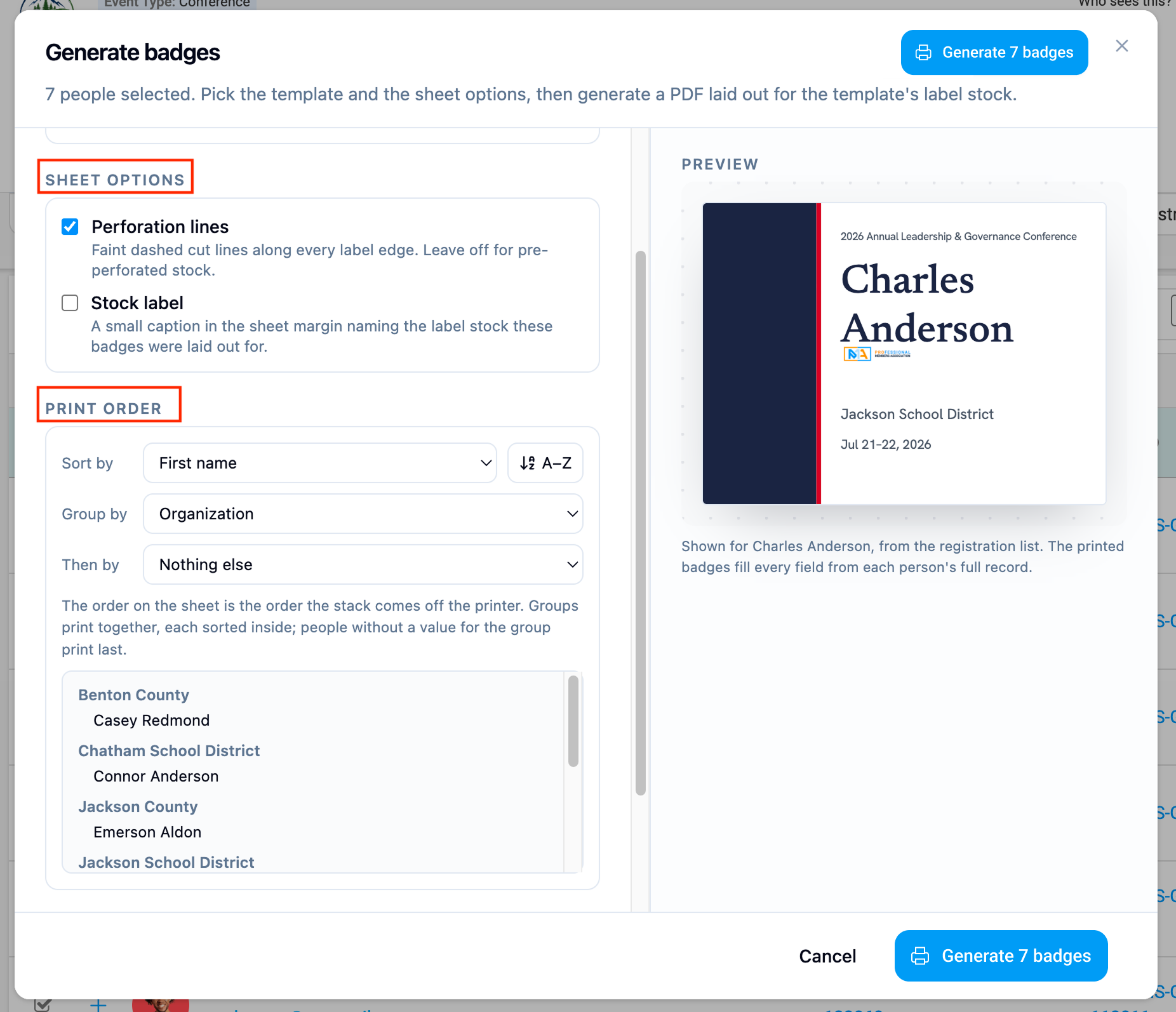
Print Order
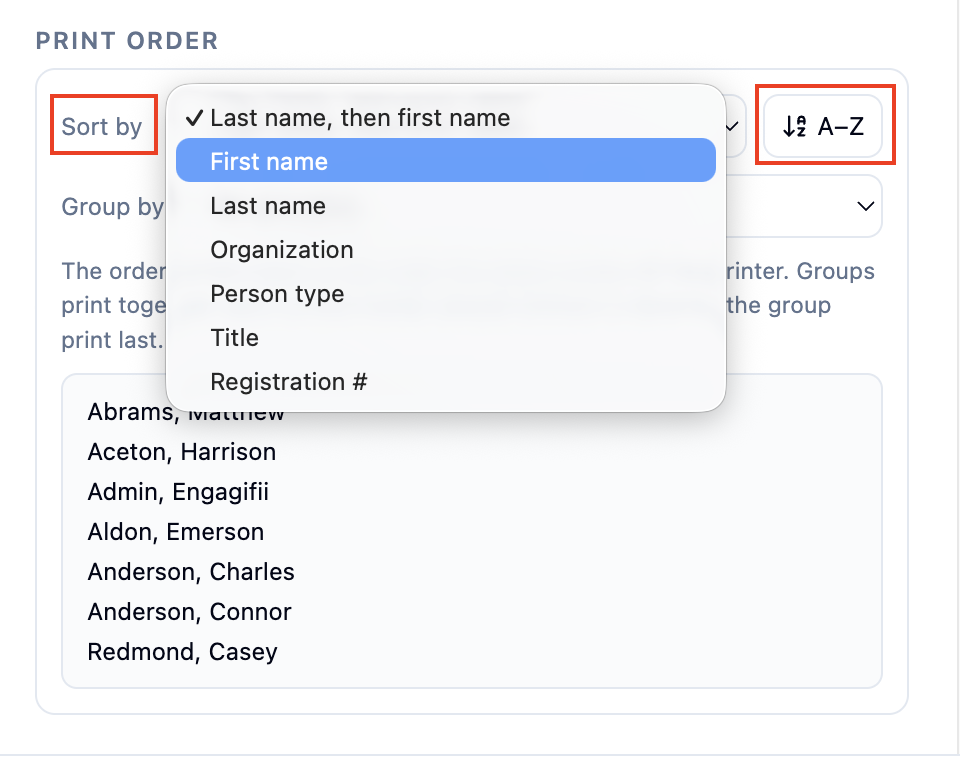
Use the Sort By and Group By options to organize how badges appear in the PDF.
You can sort badges by participant name, organization, person type, title, or registration number, and choose ascending or descending alphabetical order.
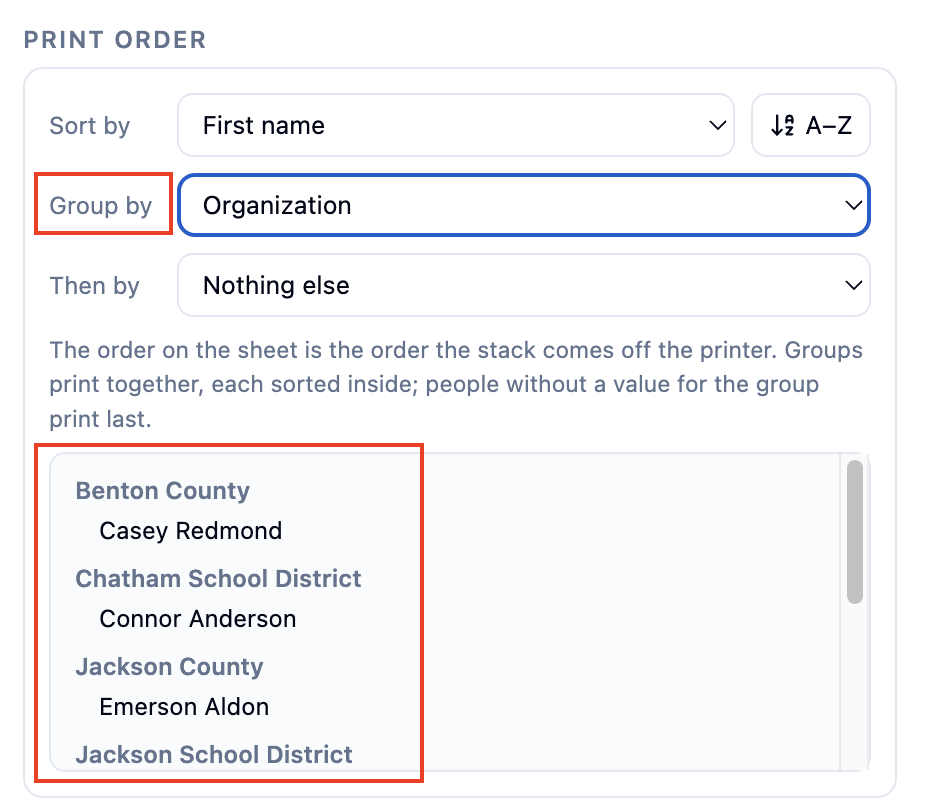
You can also group badges by Organization or Person Type to keep related participants together when printing.
Review the print order preview to confirm your selections.
Step 11. Generate and Download Badges
Once you've selected your template and configured the printing options:
- Review the badge preview and printing settings.
- Click Generate Badges.
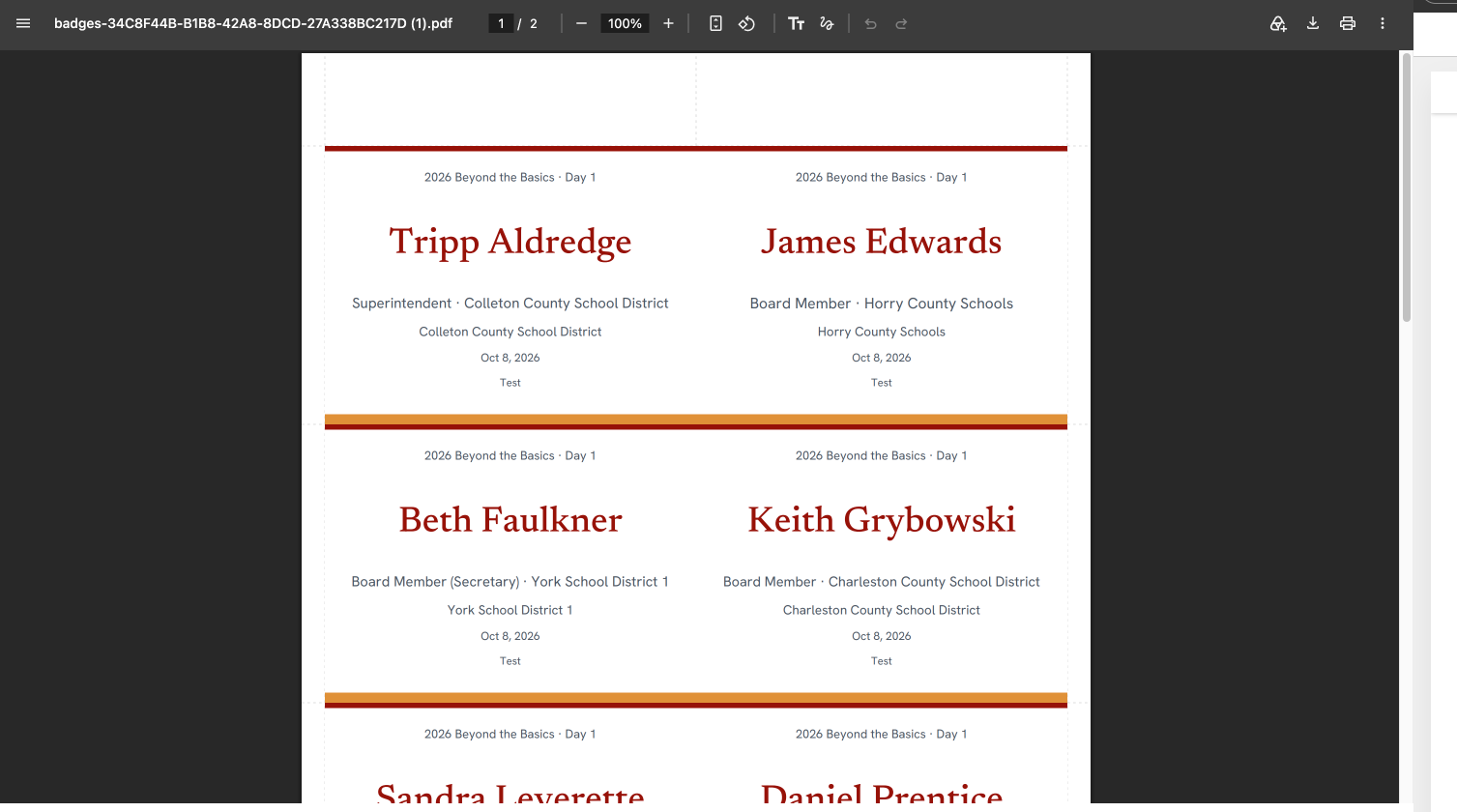
- Engagifii will generate a PDF containing personalized badges for all selected participants.
- Download and print the PDF using the corresponding label stock.
The badges will include the participant information and design settings defined in your selected template.
Closing
With Engagifii Event Badges, you can create reusable badge designs, personalize participant information, and prepare badges for printing without rebuilding layouts for every event. From customizing templates to organizing print order, the entire process helps your team save time while delivering consistent, professional-looking badges. For additional assistance, please reach out to us at support@engagifii.com