
Summary
Engagifii allows administrators to enable public self-registration and define the Person Type and Role assigned to newly registered individuals. Once enabled, people can sign up directly from the Engagifii login page, create their credentials, and complete their profiles.
This guide walks through enabling self-registration, completing the sign-up process, and understanding how access is assigned.
Part 1: Enable Self-Registration
Before people can create their own accounts, an administrator must enable self-registration and configure the default access settings.
Step 1. Open User Settings
- Log in to Engagifii as an administrator.
- Navigate to Workspace Settings → User Settings.
- Locate the option Allow Public Users to Self-Register.
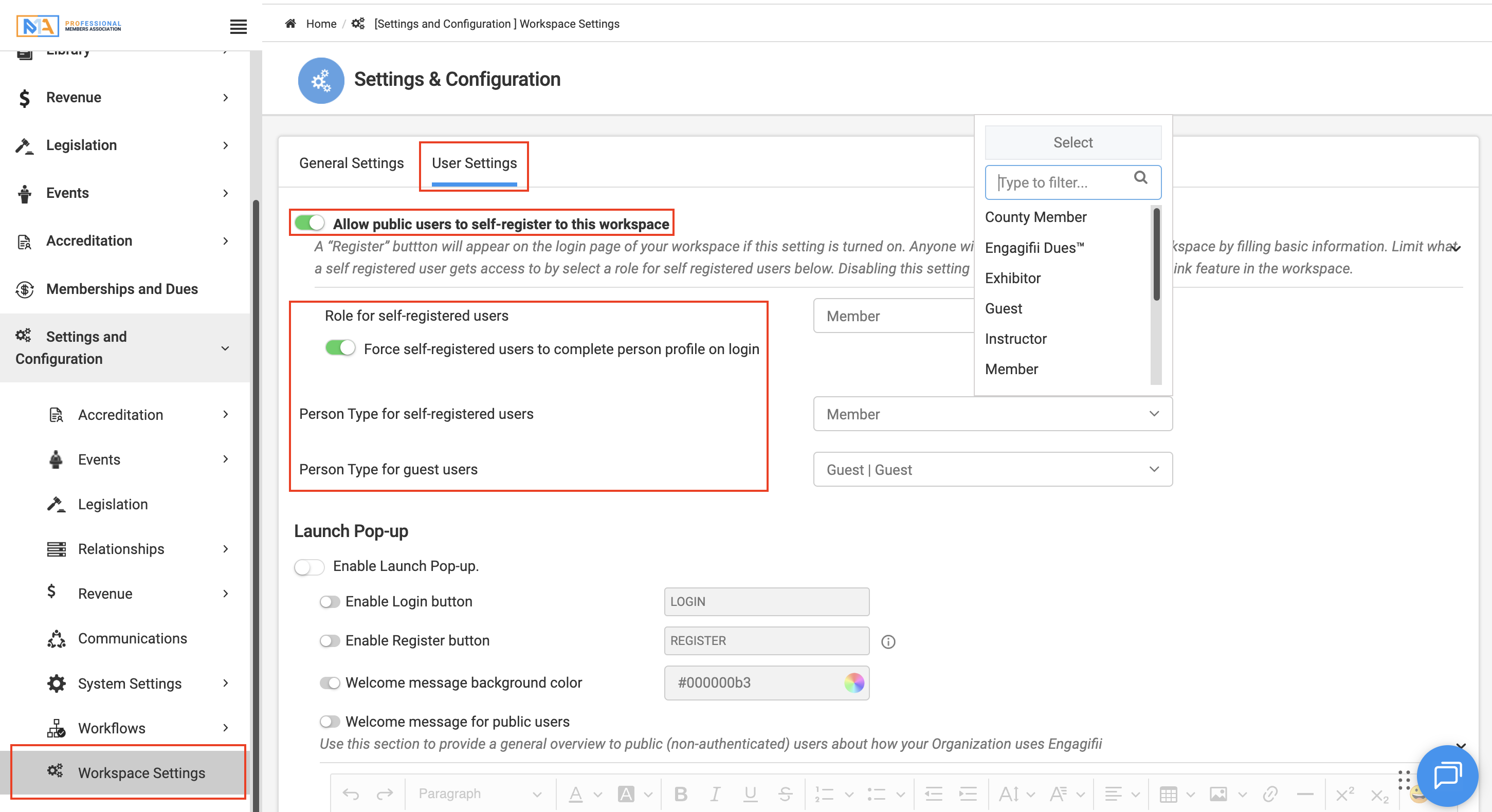
Step 2. Enable Self-Registration and Assign Default Access
- Turn on Allow Public Users to Self-Register.
- Select the Person Type to assign to newly registered individuals.
- Select the appropriate Role to determine their permissions.
- Click Save to apply the settings.
For example, you may assign a Member, Prospective Member, or Member Applicant classification depending on how your organization manages new registrations.
Note: The selected Role determines what individuals can access after completing registration. Review these permissions before enabling public self-registration.
Part 2: Create an Account Through Self-Registration
Once self-registration is enabled, individuals can create their own Engagifii accounts directly from the login page.
Step 3. Open the Registration Page
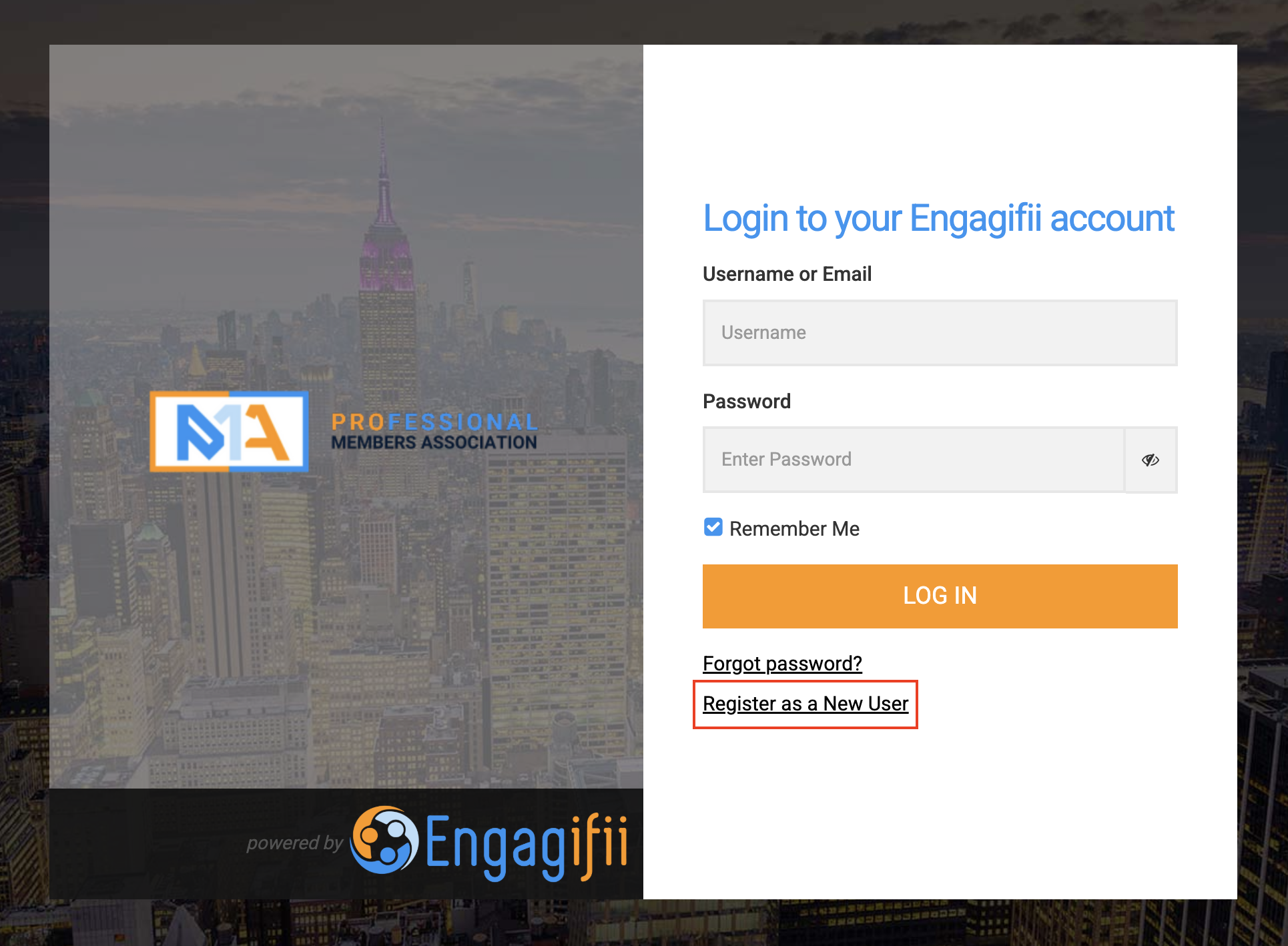
- Open your organization's Engagifii login page.
- Click Register as New User.
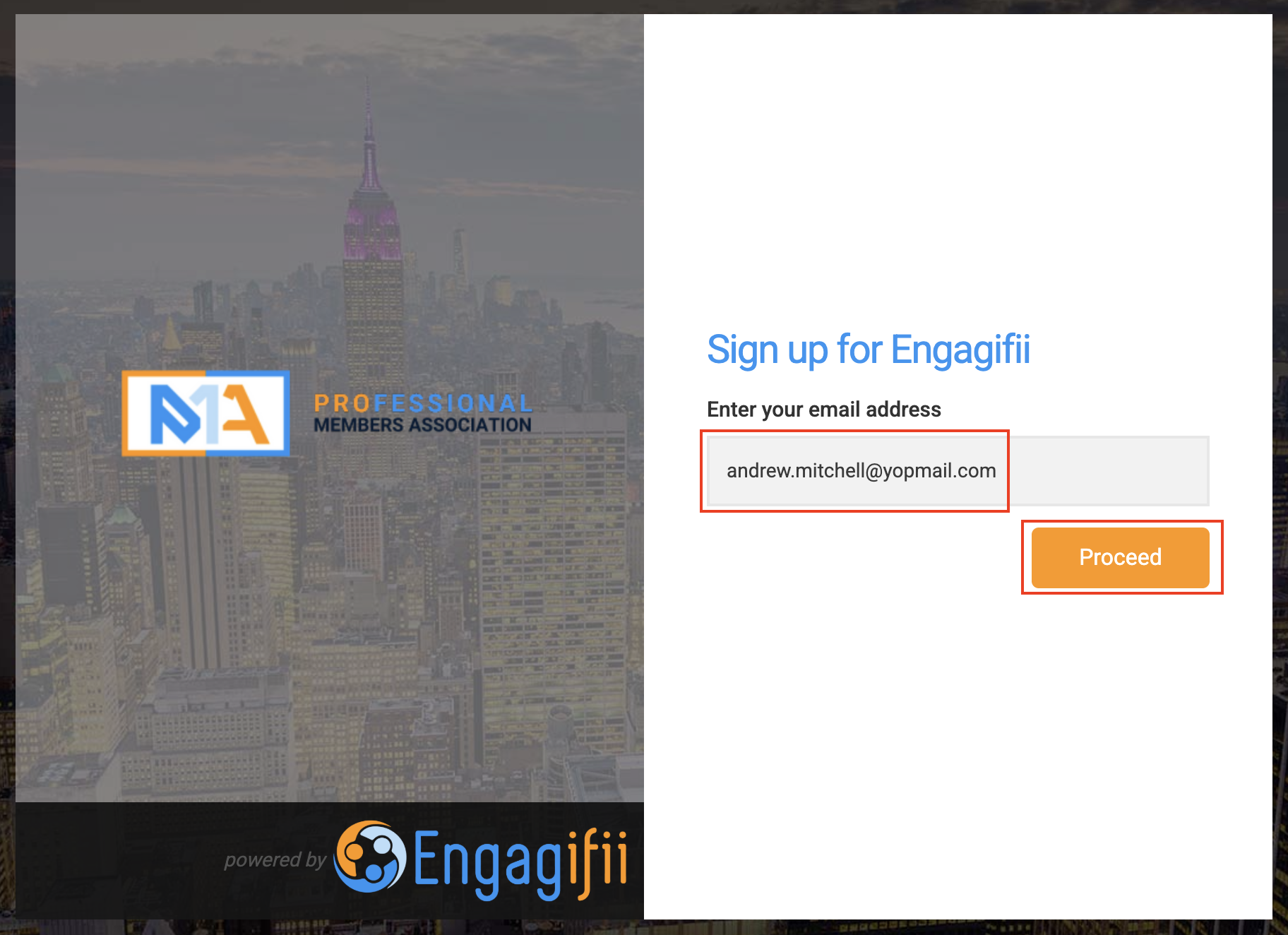
- Enter your Email Address.
- Click Proceed.
Engagifii checks whether an account already exists for the email address entered.
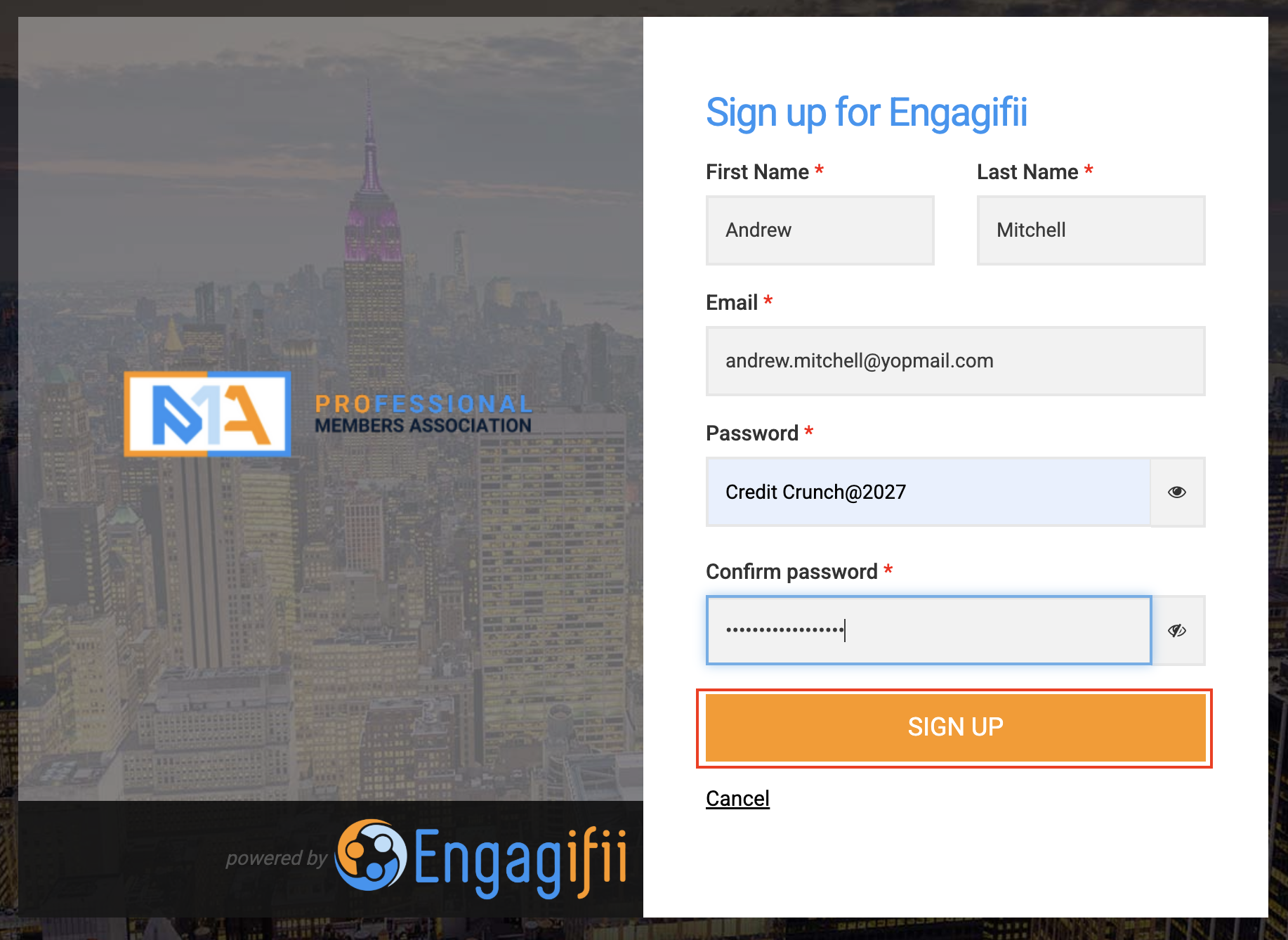
Step 4. Create Your Login Credentials
- After proceeding with your email address, follow the prompts to create a password.
- Click Sign Up to continue.
Once your credentials are created, Engagifii will guide you through completing your profile.
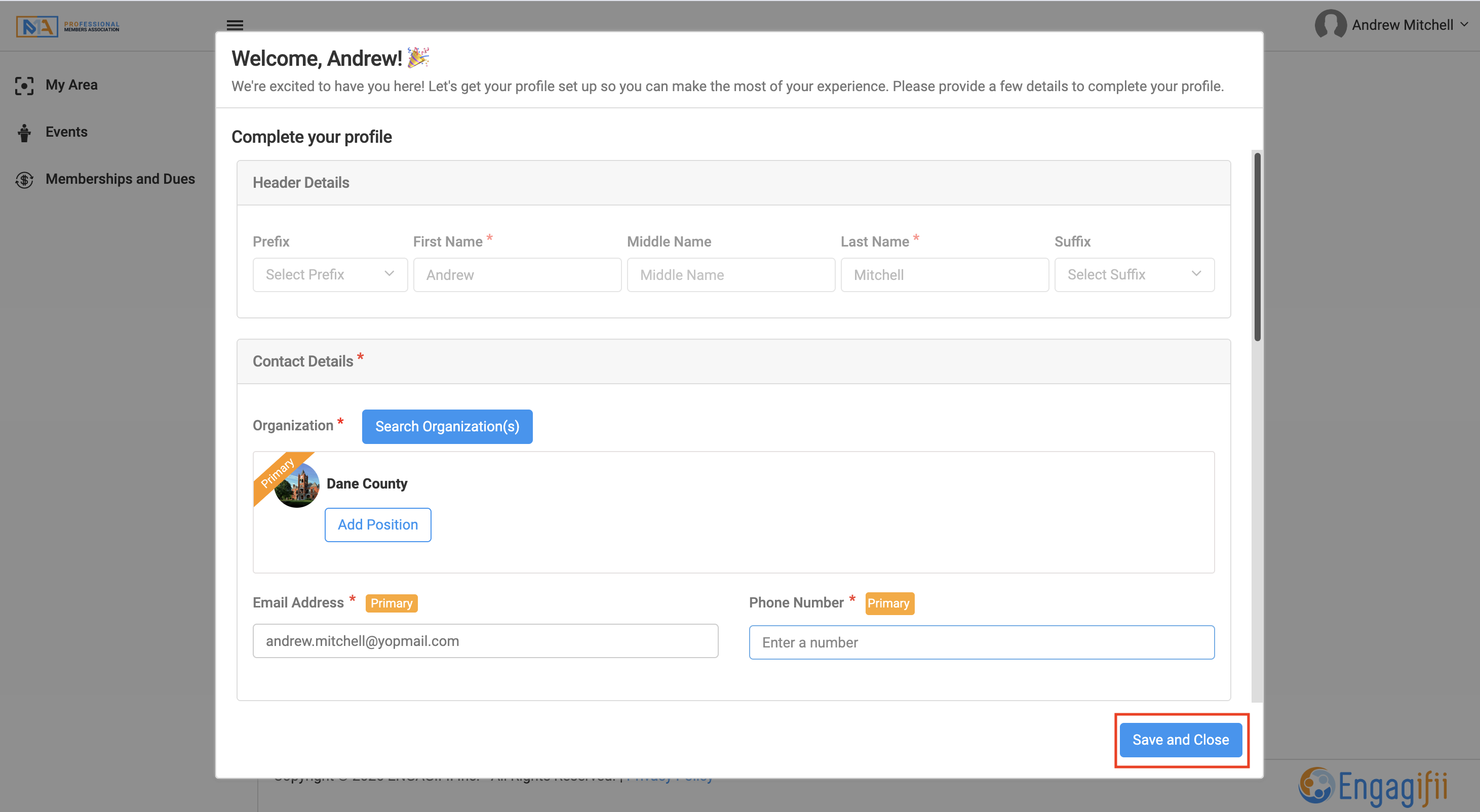
Step 5. Complete Your Profile
Enter the requested information in the profile form. Depending on your organization's configuration, this may include:
- Name and Contact Information
- Organization
- Position and Start Date
- Address
The information displayed is based on the fields your organization has configured for new profile creation.
Once the required information is entered, click Save & Close.
Step 6. Access Your Engagifii Account
After completing your profile, you can access Engagifii using your newly created credentials.
Your account will have the Person Type and Role assigned through the workspace's self-registration settings. These permissions determine which areas of Engagifii are available to you.
Suggested Screenshot: Newly registered person's Engagifii dashboard.
Part 3: Understanding Access and Permissoins After Registration
Roles and Permissions
When someone self-registers, Engagifii automatically applies the configured Person Type and Role.
This helps ensure that newly registered individuals receive the appropriate level of access without requiring administrators to assign permissions manually to each new account.
Administrators can manage these settings through the workspace's role and permission configurations.
Access to Memberships & Dues
If your organization uses Engagifii Dues, newly registered individuals may also access Memberships & Dues through their Engagifii account, provided their assigned Role includes the necessary permissions.
From there, they can explore available membership options and enroll in eligible offerings.
Note: Creating an Engagifii account does not automatically enroll someone in a membership. Membership enrollment is a separate process and depends on the applicable eligibility and visibility settings.
Closing
By enabling self-registration, your organization can make it easier for new people to join Engagifii while maintaining control over their initial access. With predefined Person Types, Roles, and profile fields, administrators can simplify onboarding and keep new records organized from the start.
For further assistance, please write to our support team at support@engagifii.com.