
Summary
Managing cancellations and modifications manually can be time-consuming, especially for large events with dozens of changes. This feature introduces configurable policies that automatically calculate fees based on defined rules. Policies can be set at the workspace level and customized further at the event type and event level, ensuring flexibility while maintaining consistency.
How It Works (General Setup)
Cancellation and modification policies follow a hierarchical structure:
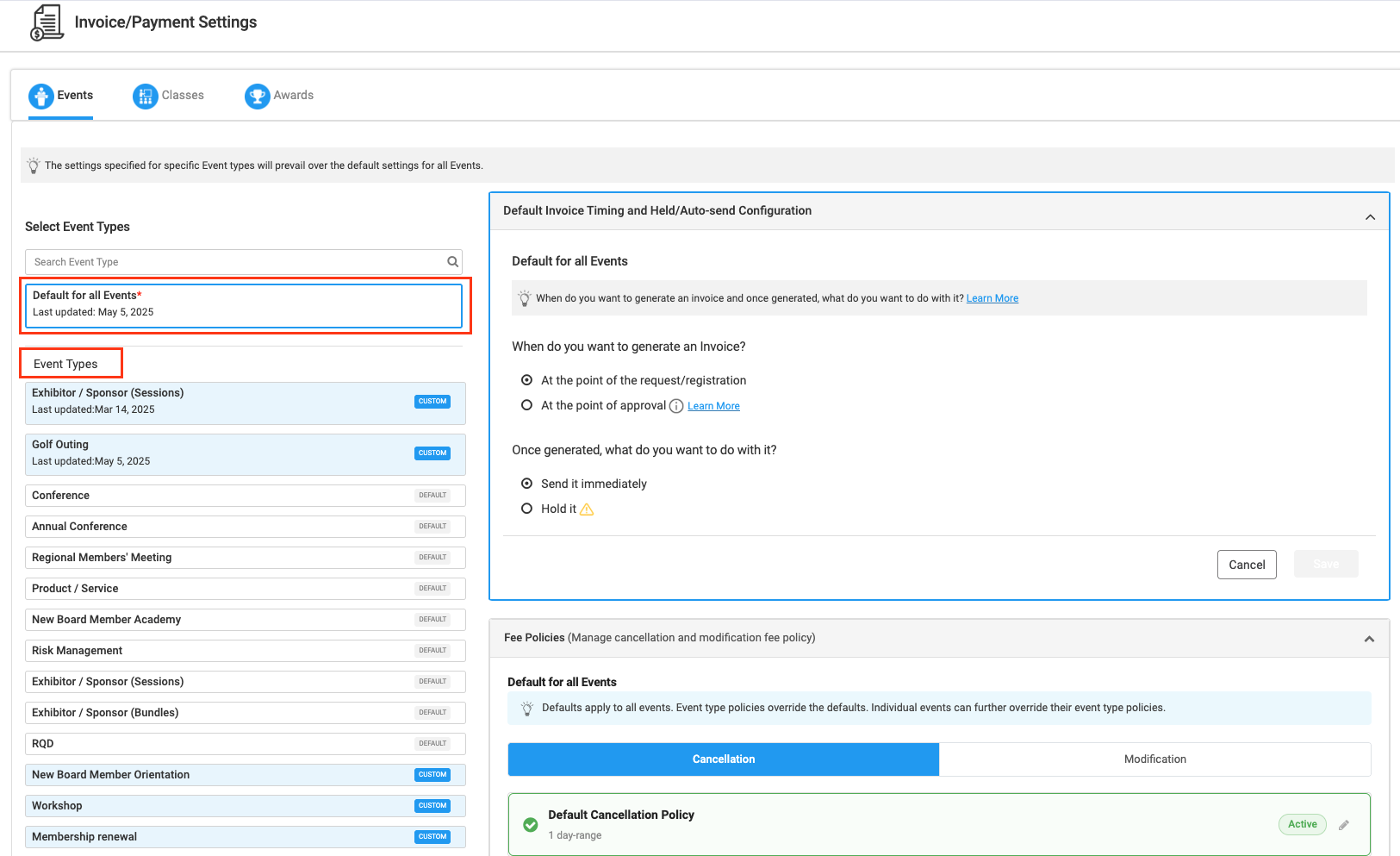
1. Workspace Level (Default Policy):
Changes made here apply to all events across your organization.
2. Event Type Level:
Policies can be customized based on event types such as Conference, Exhibition, Regional Meetings, etc.
3. Event Level:
Admins can override policies for a specific event by navigating to:
Event → Settings → Cancellation & Modification Policy
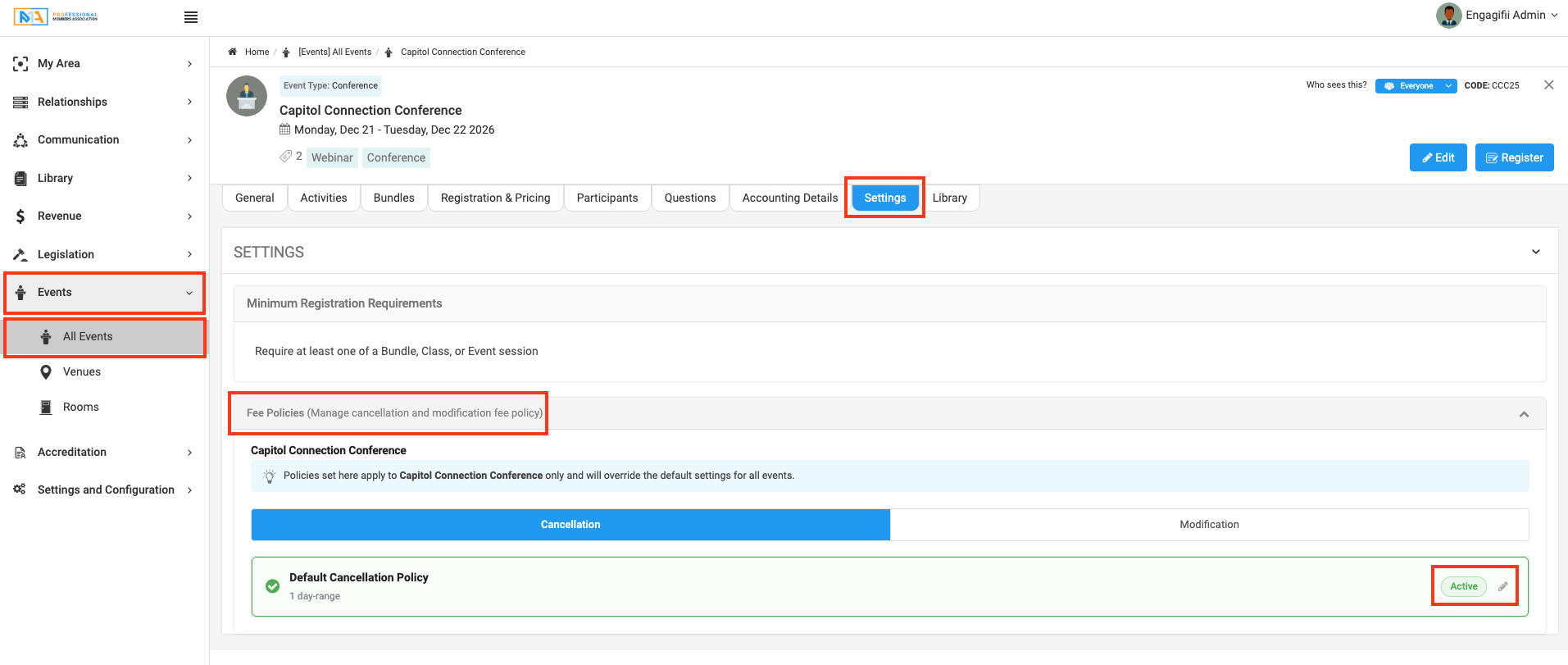
Policies defined at the workspace level are automatically inherited by event types and events, but can be customized at each level as needed.
Key Behavior to Understand
- If no policy is defined, the system will charge $0 by default
- Policies must cover complete and correct time ranges to avoid unintended free cancellations or modifications
- Fees are calculated based on:
- Days before event start, or
- Days before registration close
- Works for both:
- Member registrations
- Exhibitor registrations
Cancellation Fee Policy
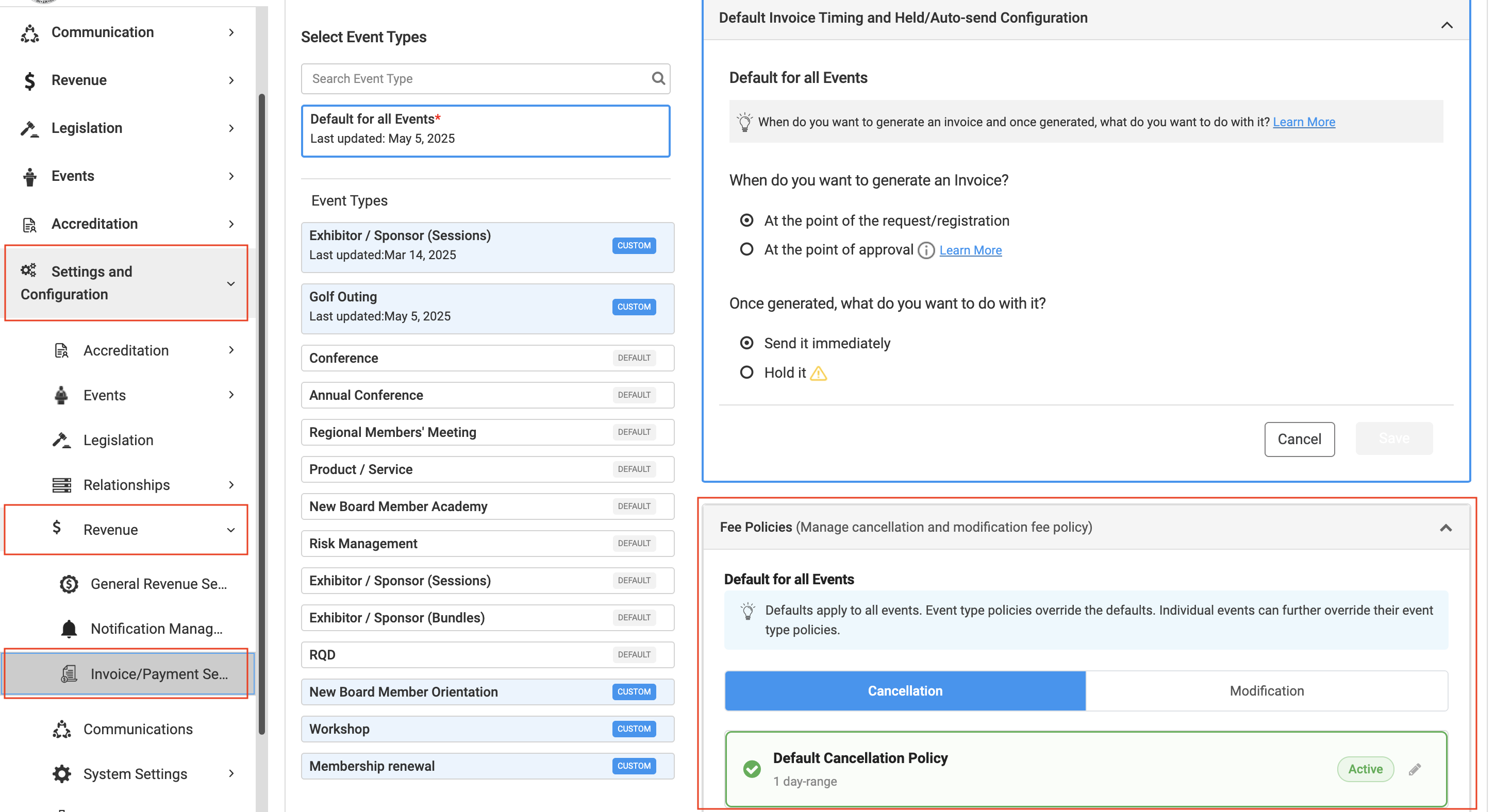
Configure Cancellation Policy
Navigate to:
Settings & Configuration → Revenue Settings → Invoice & Payment → Cancellation Policy
Define Rules
To configure your cancellation policy:
- Select Default Policy or choose a specific Event Type
- Click the pencil (edit) icon next to Cancellation Policy Setup
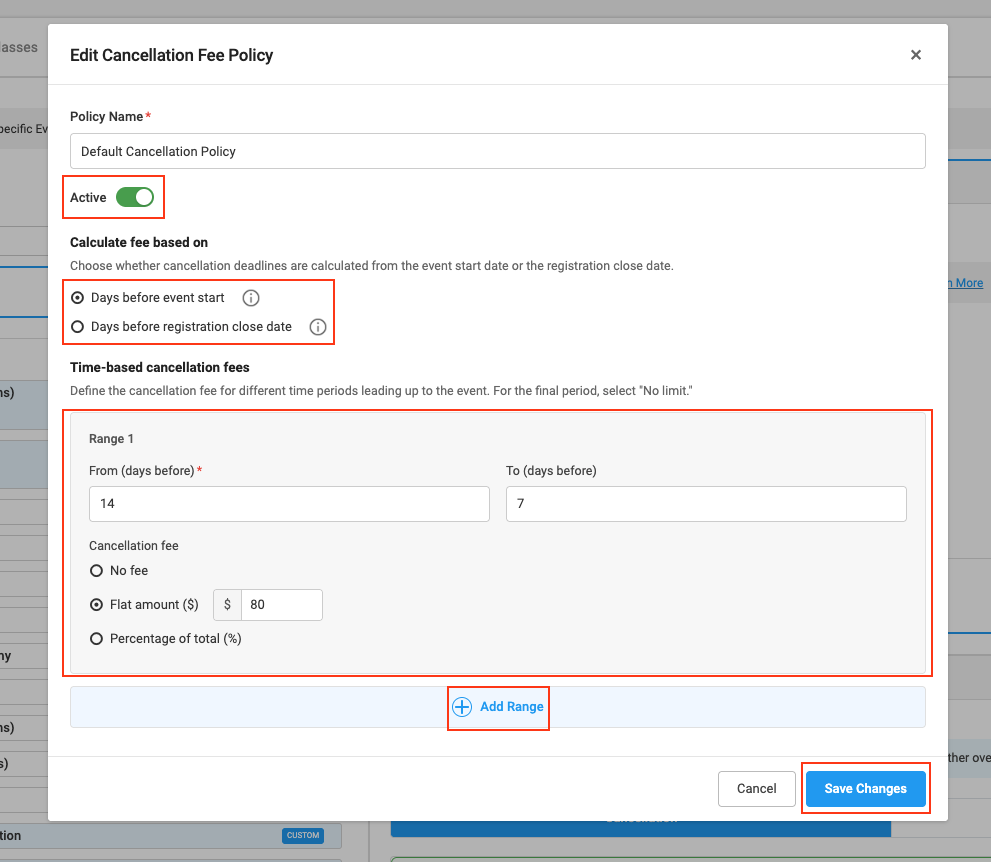
- The Edit Cancellation Fee Policy pop-up will open
- Turn the toggle ON to activate the fee policy
- Select one of the following Fee Types
- No Fee
- Flat Amount ($)
- Percentage of Total (%)
- Click + Add Range to define multiple time-based rules
- Click Save Changes to apply your policy
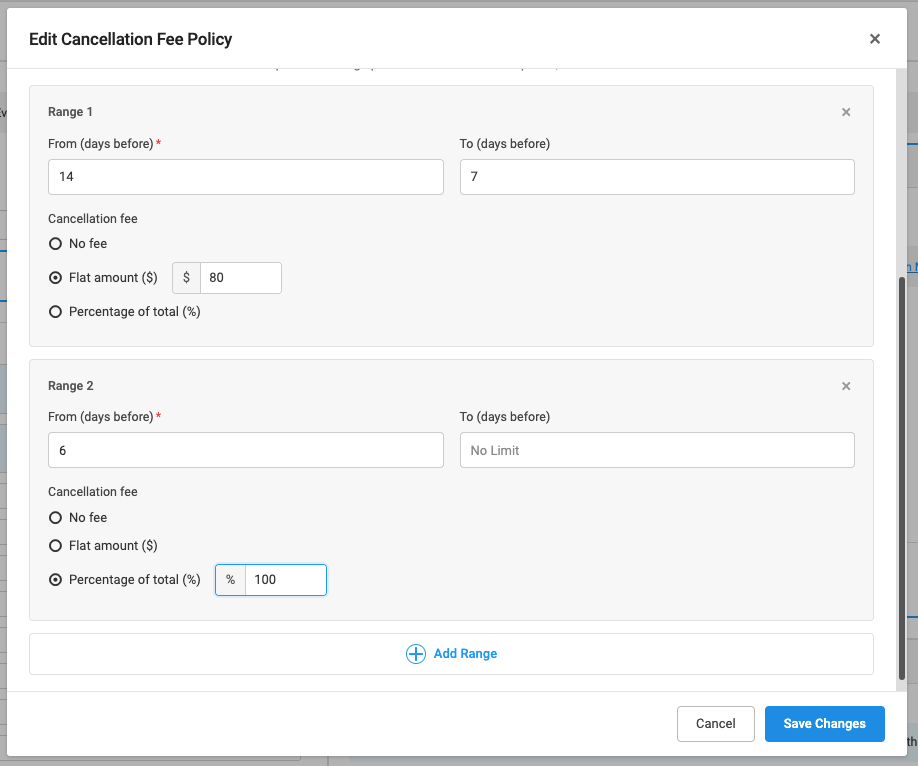
Example:
- Range 1: 14 to 7 days before event → Flat fee (e.g., $80)
- Range 2: 6 days before event to event date (or after) → 100% charge
Modification Fee Policy
Configure Modification Policy
Navigate to:
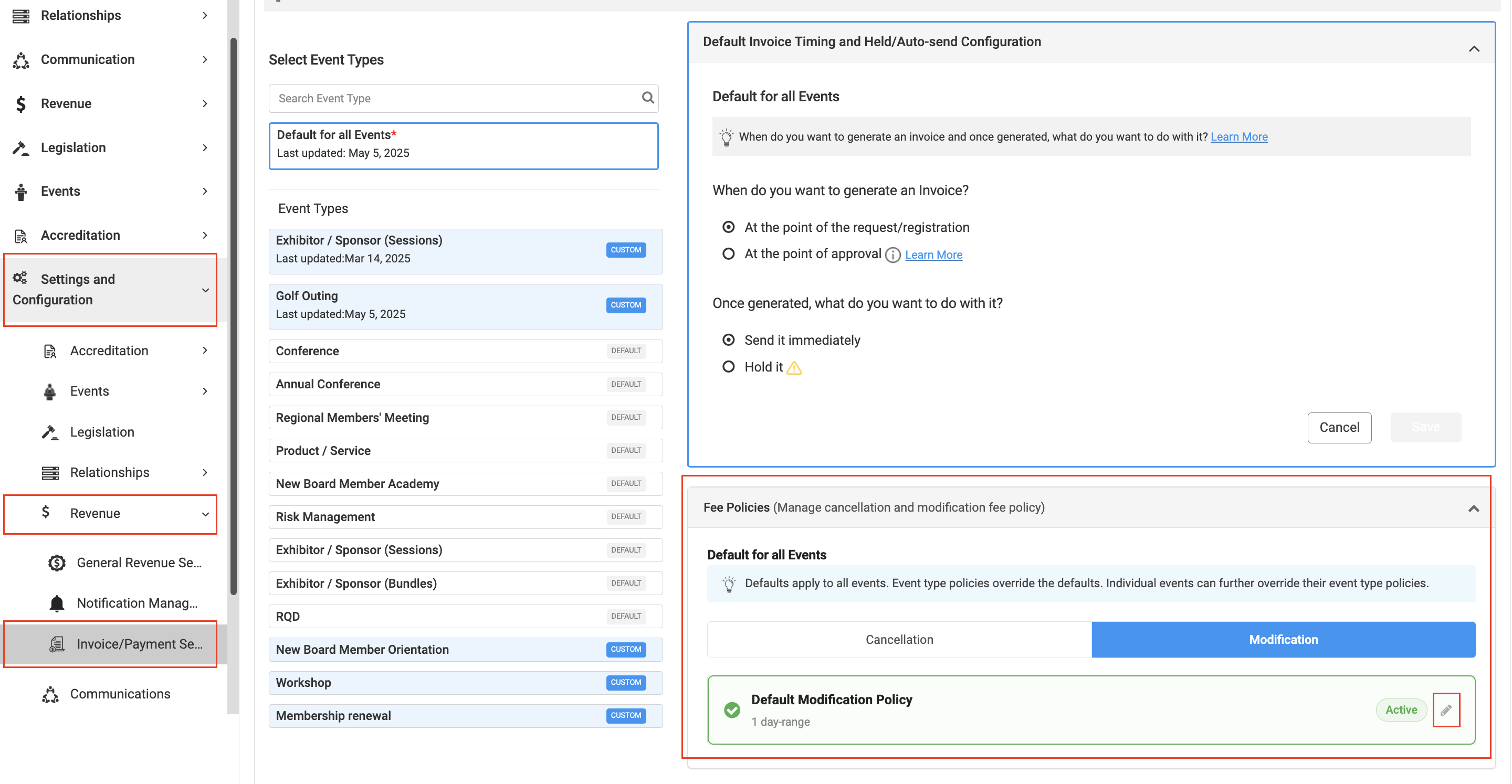
Settings & Configuration → Revenue Settings → Invoice & Payment → Modification Policy
Define Rules
To configure your modification policy:
- Select Default Policy or choose a specific Event Type
- Click the pencil (edit) icon next to Modification Policy Setup
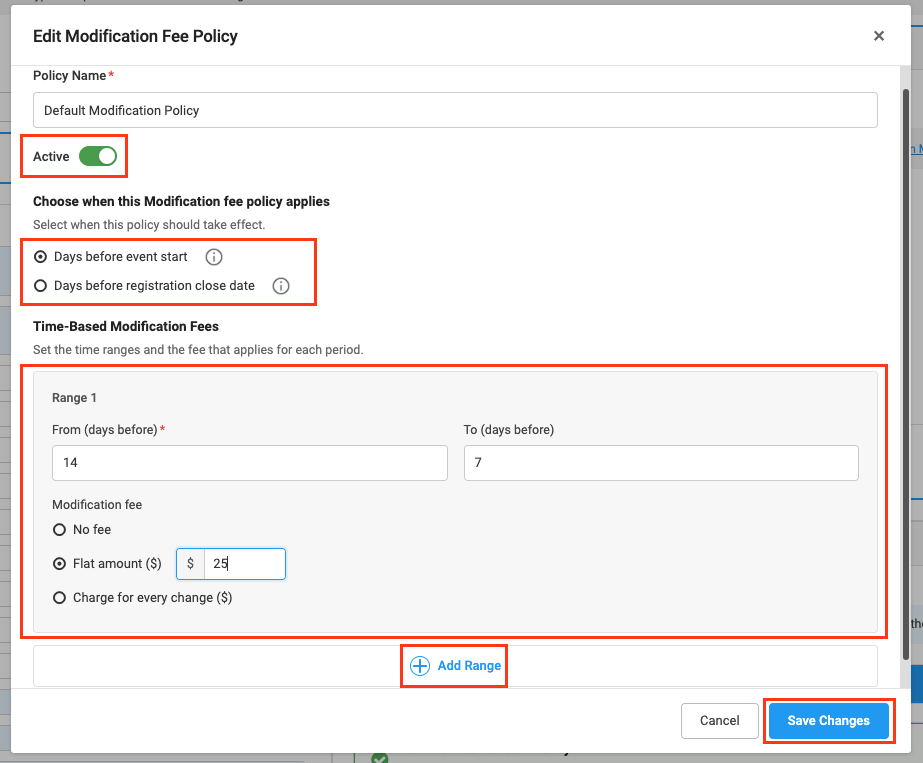
- The Edit Modification Fee Policy pop-up will open
- Turn the toggle ON to activate the fee policy
- Select one of the following Fee Types
- No Fee
- Flat Amount ($)
- Charge Per Change (charge for each modification made)
- Click + Add Range to define multiple time-based rules
- Click Save Changes to apply your policy
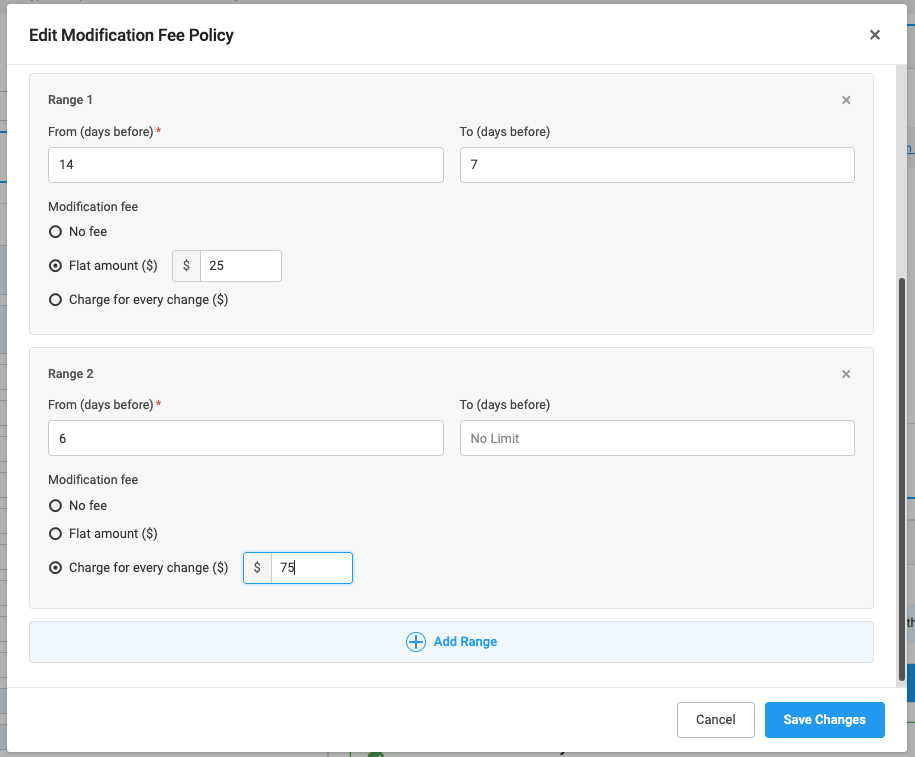
Example:
- Range 1: 14 to 7 days before event → $25
- Range 2: 6 days before event to event date (or after) → $75
What To Expect:
For Users
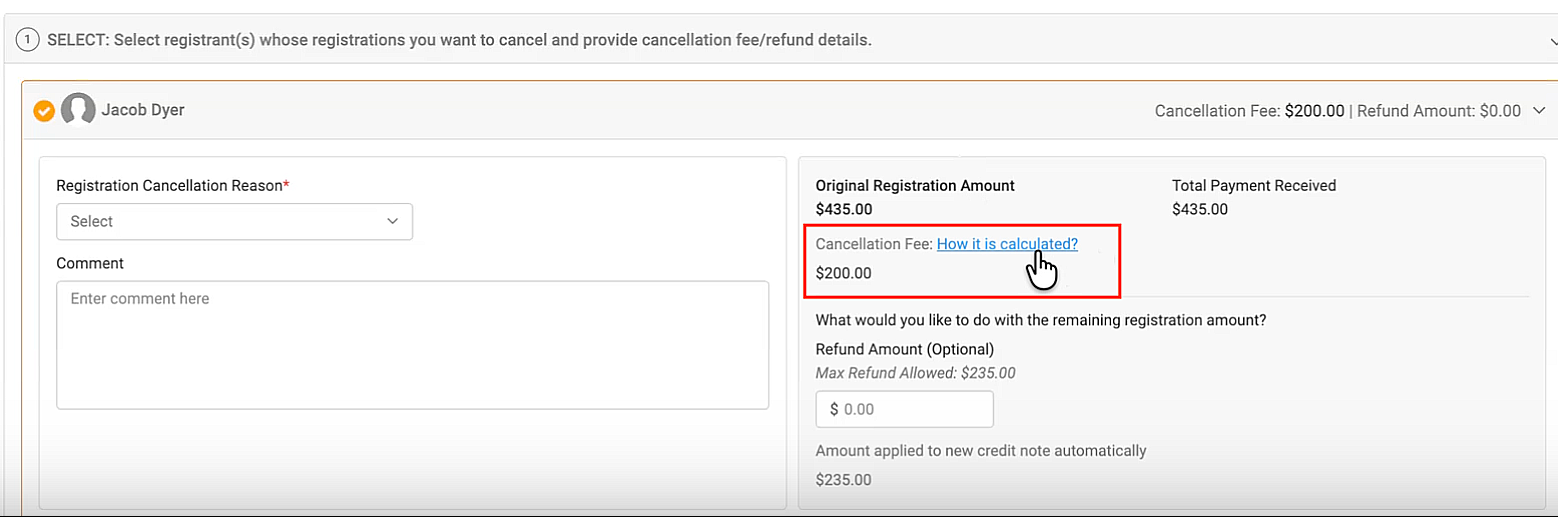
When a user cancels or modifies a registration:
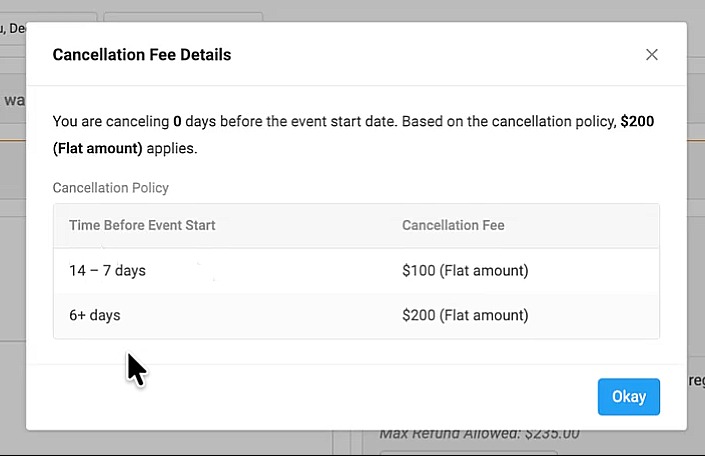
- The system automatically calculates the applicable fee
- A breakdown shows how the fee was determined by clicking on “How it is calculated” while making the final changes
- The user can proceed with full visibility
For Admins
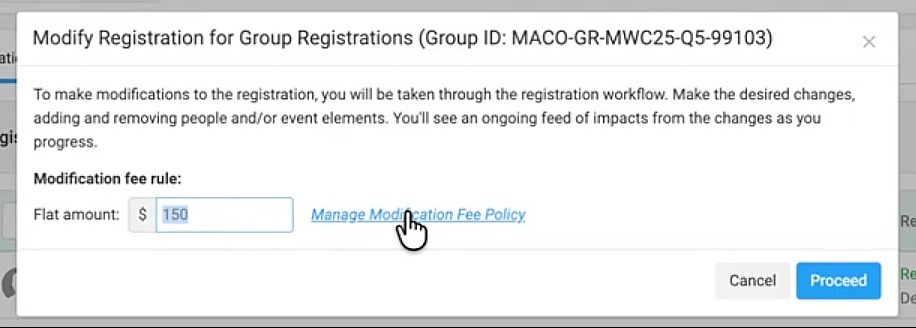
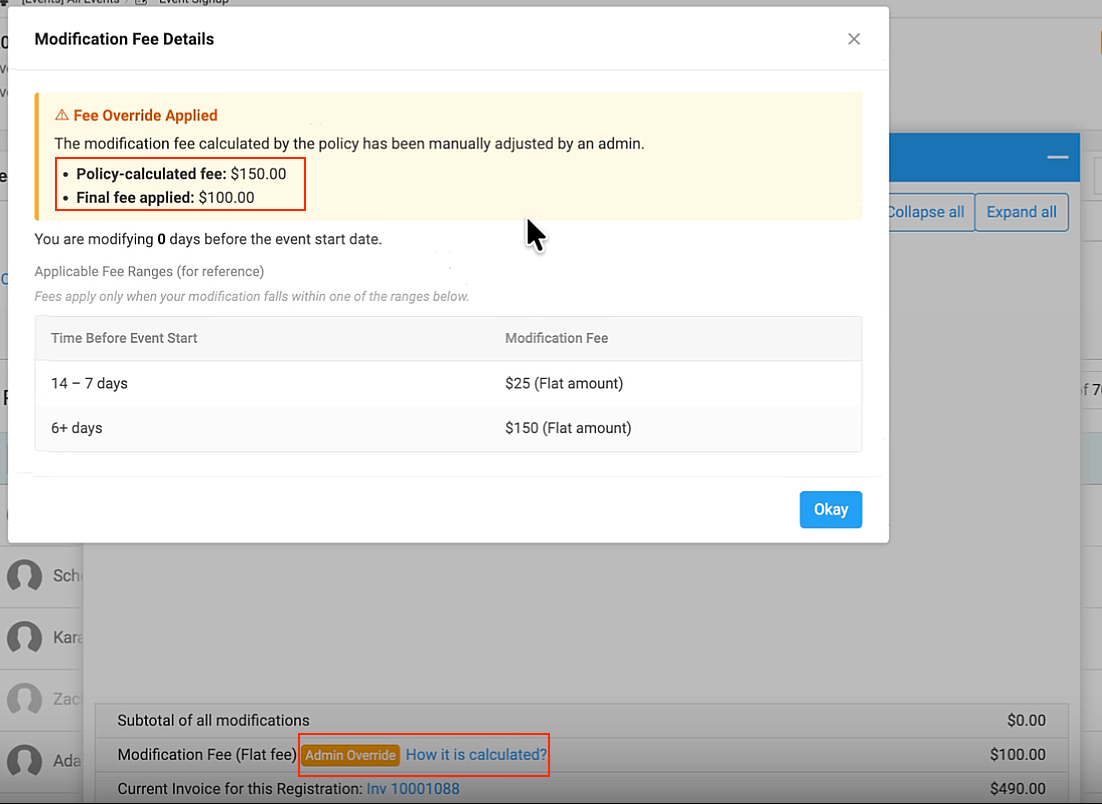
Admins can:
- View calculated fees
- Override the fee manually (e.g., waive or reduce fee)
- Apply discounts or apply exceptions based on special cases
Final Thoughts
The Cancellation & Modification Fee Policy helps automate one of the most time-intensive parts of event management. By setting clear rules upfront, organizations can reduce manual work, maintain consistency, and provide a better experience for both admins and registrants.
We hope this guide helps you configure and manage your cancellation and modification policies effectively. If you have any questions, please reach out to our support@engagifii.com.